Omnisend 入门指南
Omnisend 集成如何工作
通过集成,即使消费者使用不同设备,也可分析 Omnisend 营销点击带来的每次转化。补充受众信号还能帮助挽回更多流失用户,增加邮件营销收入。
开始前的准备
- 已注册 Attribuly。
- 拥有 Omnisend 账户。
连接 Omnisend
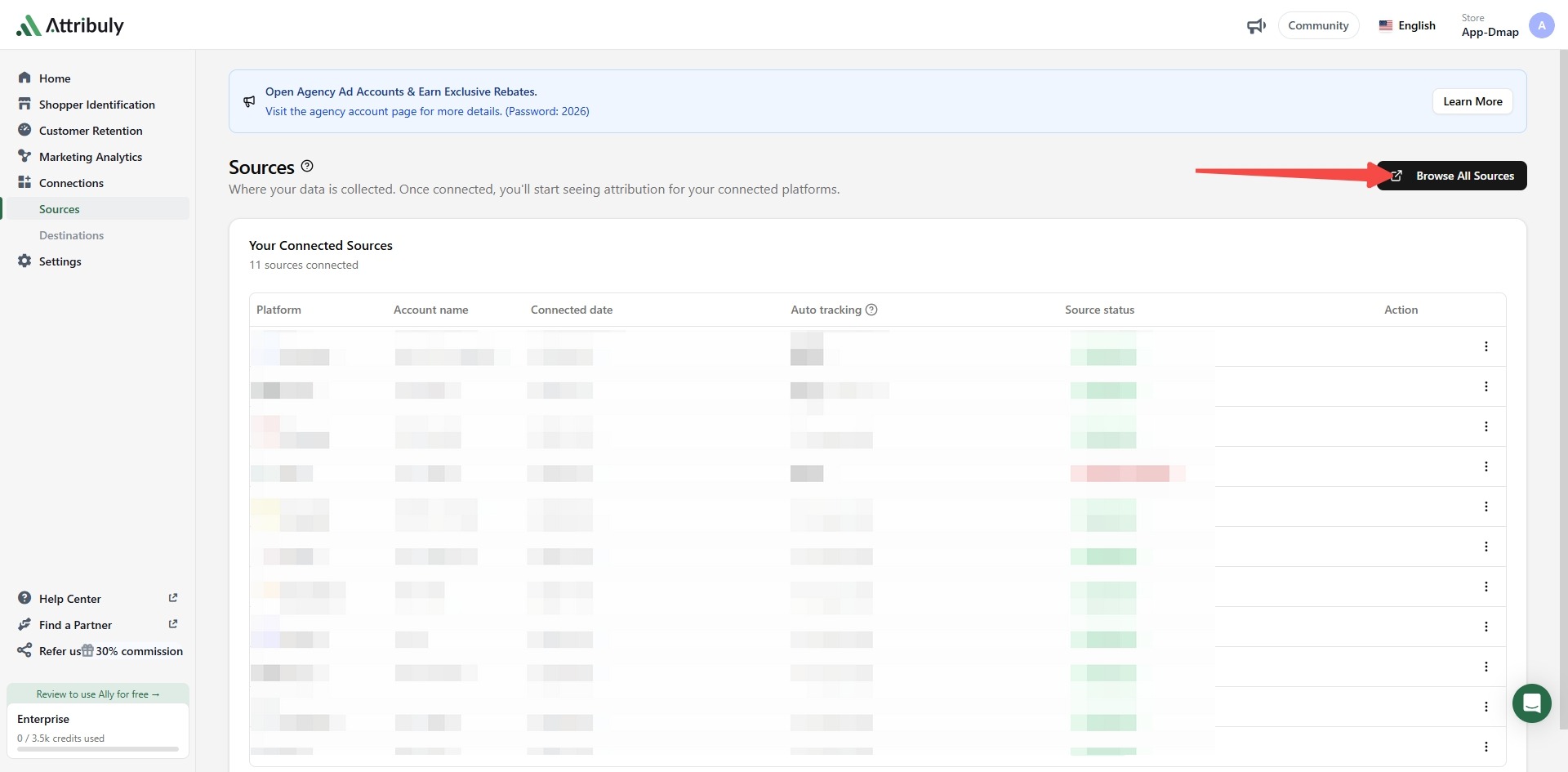
- 进入 Attribuly → Connections → Sources,点击 Browse All Sources。
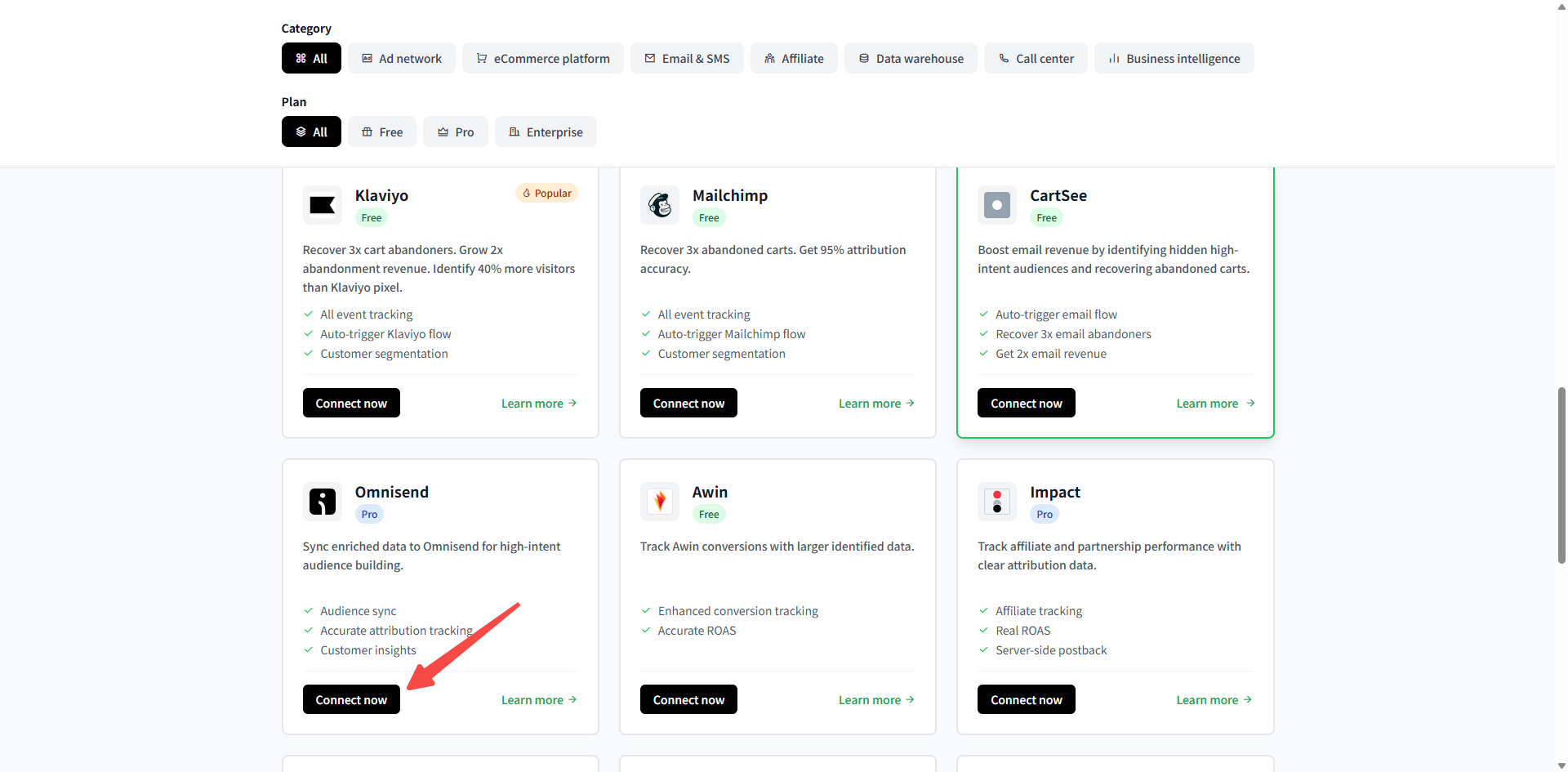
- 找到 Omnisend 卡片,点击 Connect now。
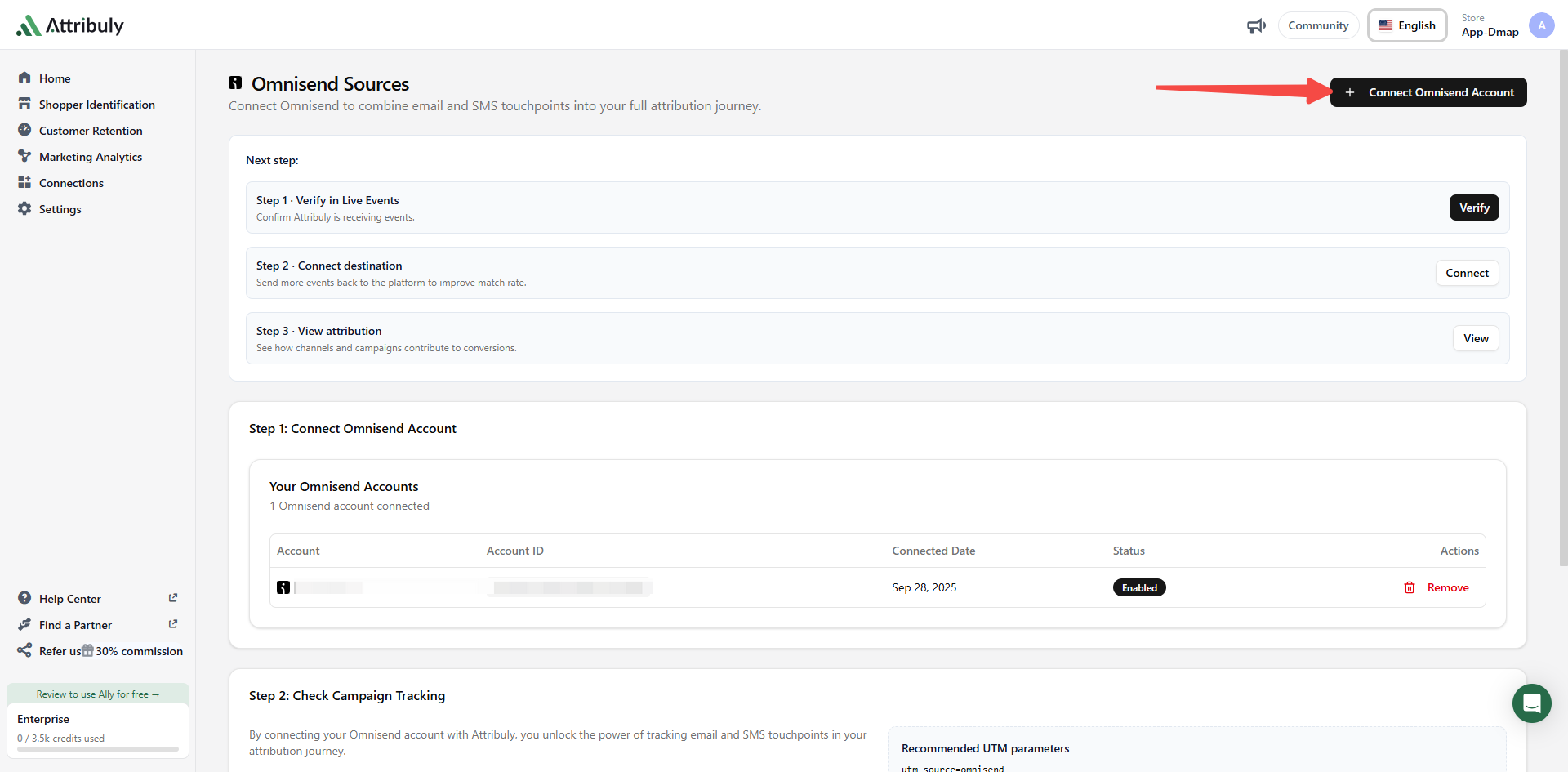
- 点击 Connect Omnisend Account,开始授权。
如需追踪 Omnisend 流量与转化,在 Omnisend 中将 utm_source 设为 omnisend。参见 Omnisend 参数设置方式。
目标端
最佳实践
Attribuly 第一方数据可识别未知或回访访客,最长达 360 天,目前支持五类服务端事件:
- Active On site。
- Product viewed。
- Collection viewed。
- Added to cart。
- Checkout started。
- Subscribe。
可以复制 Omnisend 中使用这 6 类事件的流程,最多形成 12 个自动化流程。Attribuly 流程不会与现有自动化重复发送,便于分析新流程带来的收入。
前提条件
开启 App Embed,以追踪弹窗及其他表单中的邮箱。无需移除 Omnisend 像素。
第 1 步:配置目标端
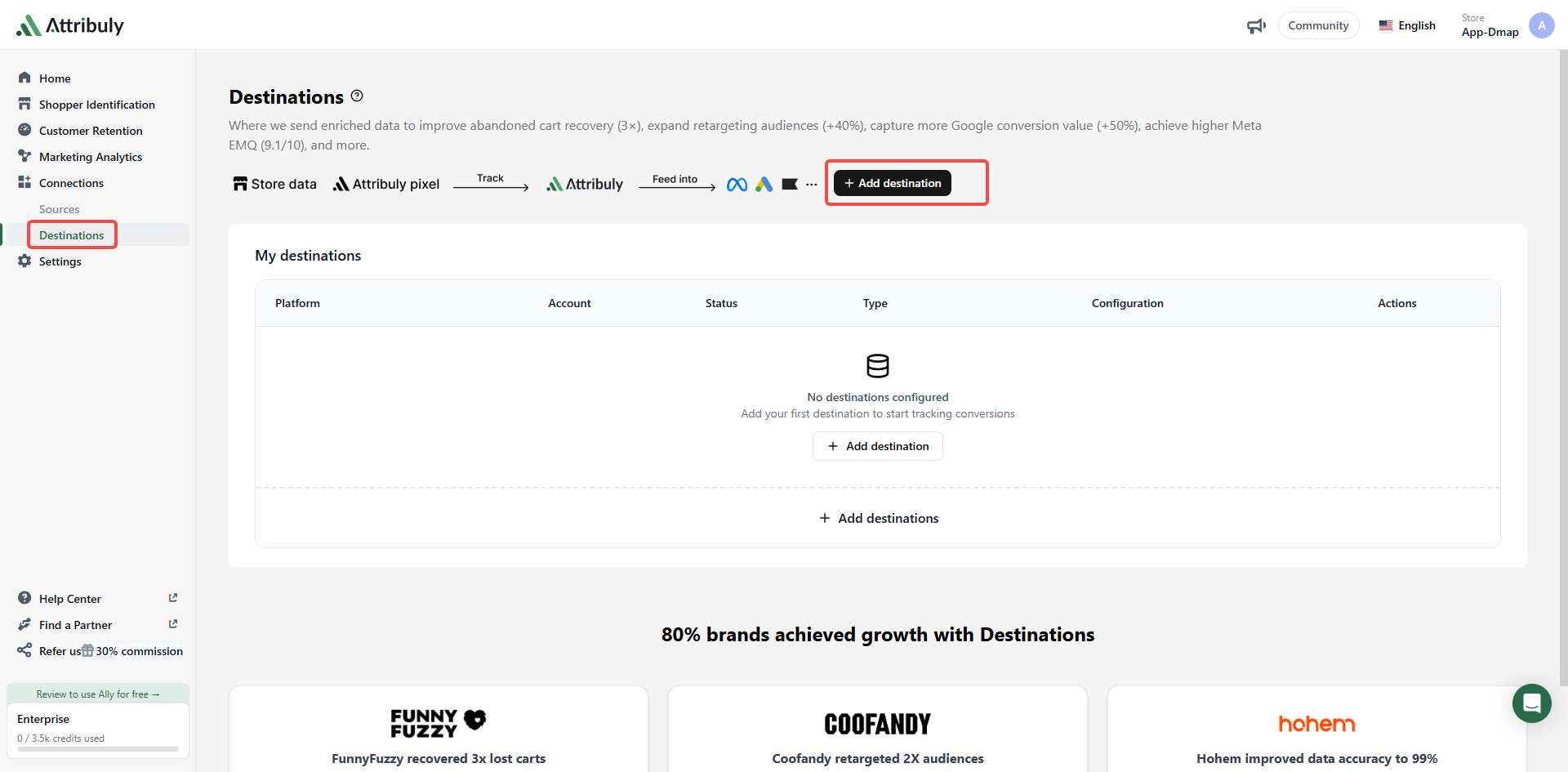
进入 Attribuly → Connections → Destinations,点击 Add destinations,选择 Omnisend。
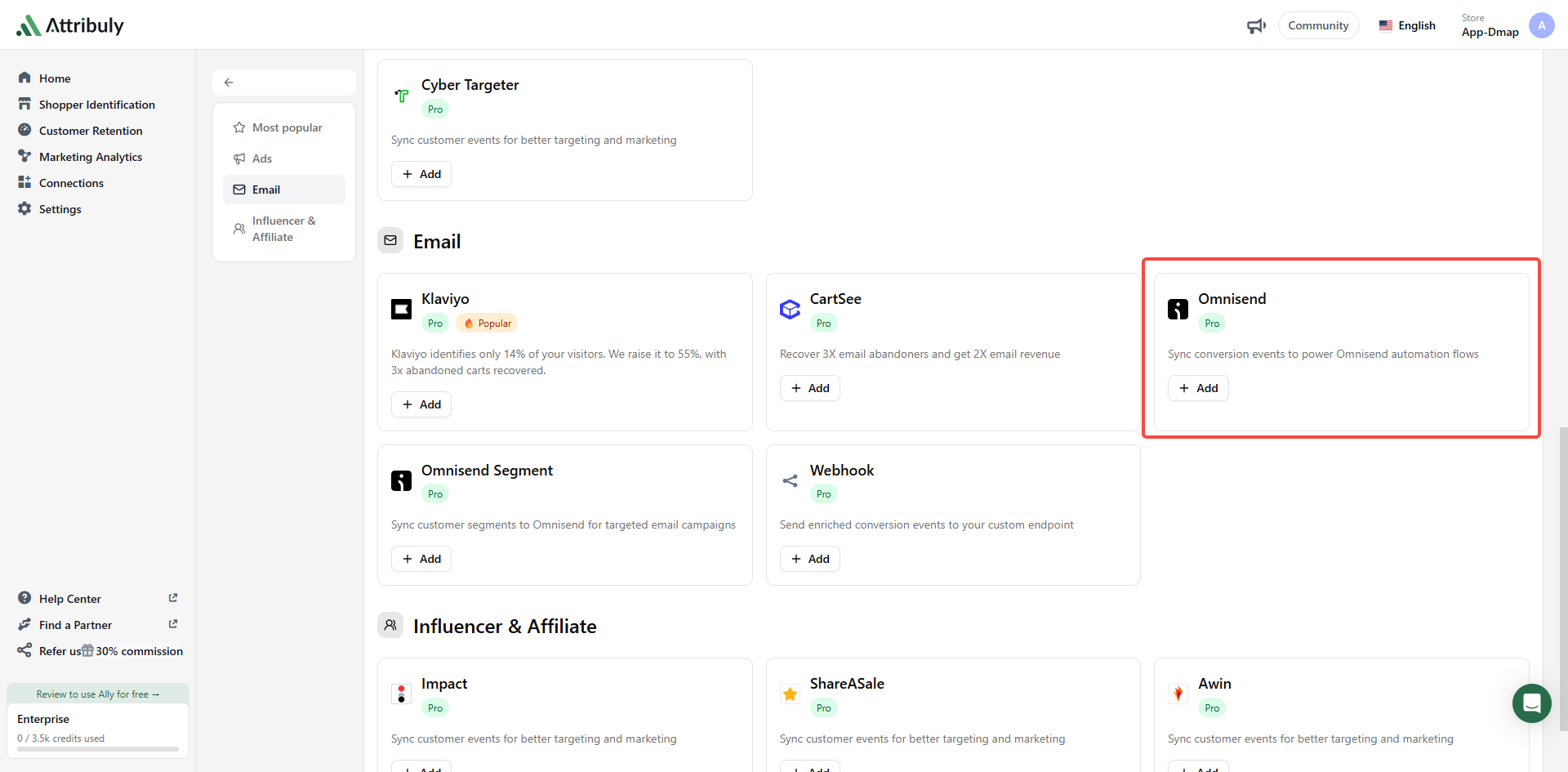
选择全部事件及接收数据的 Omnisend 账户,点击 Save Configuration。
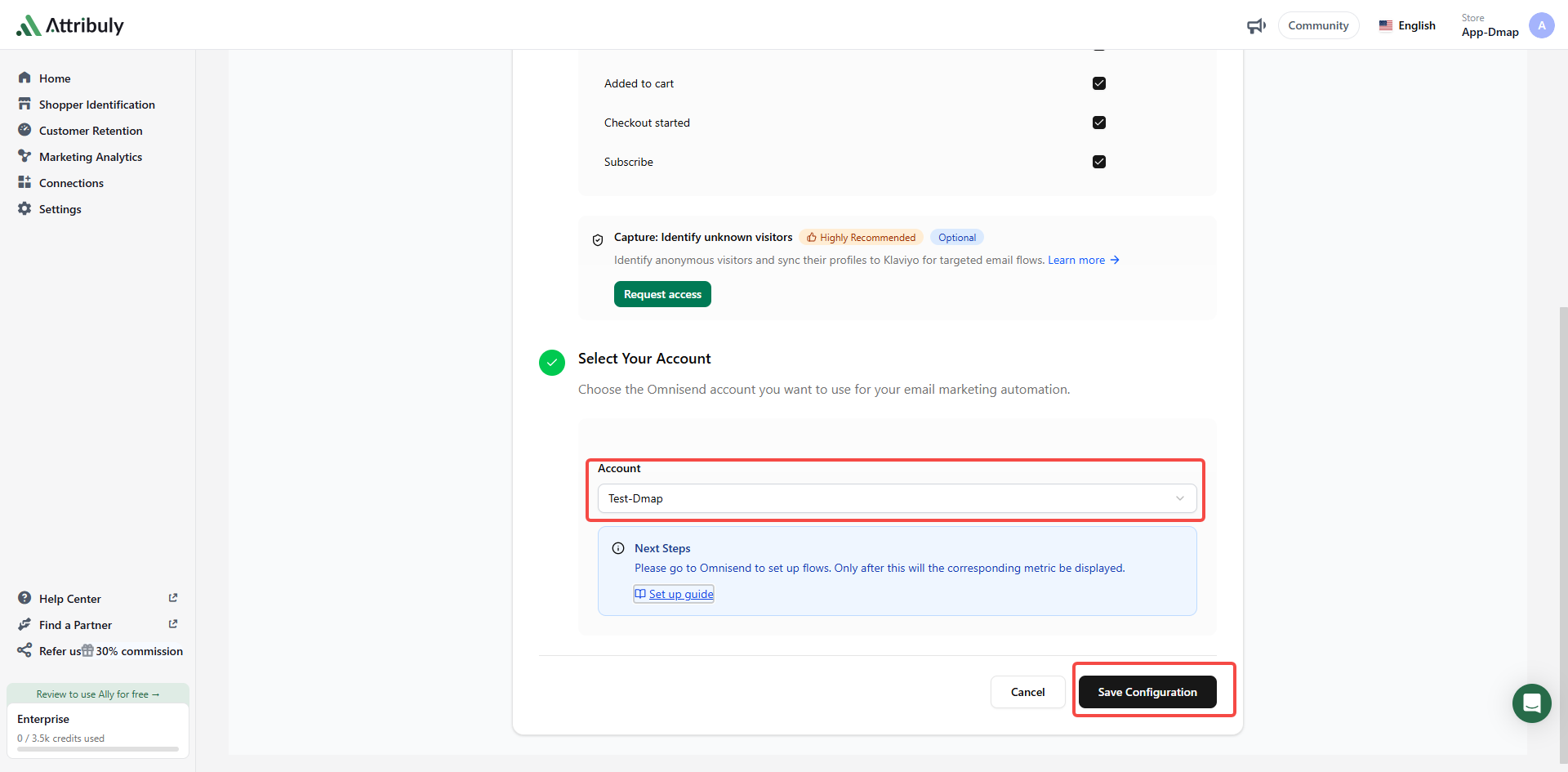
配置完成。
第 2 步:配置 Omnisend 自动化
以弃购流程为例
选择 Abandoned Cart 流程并复制。
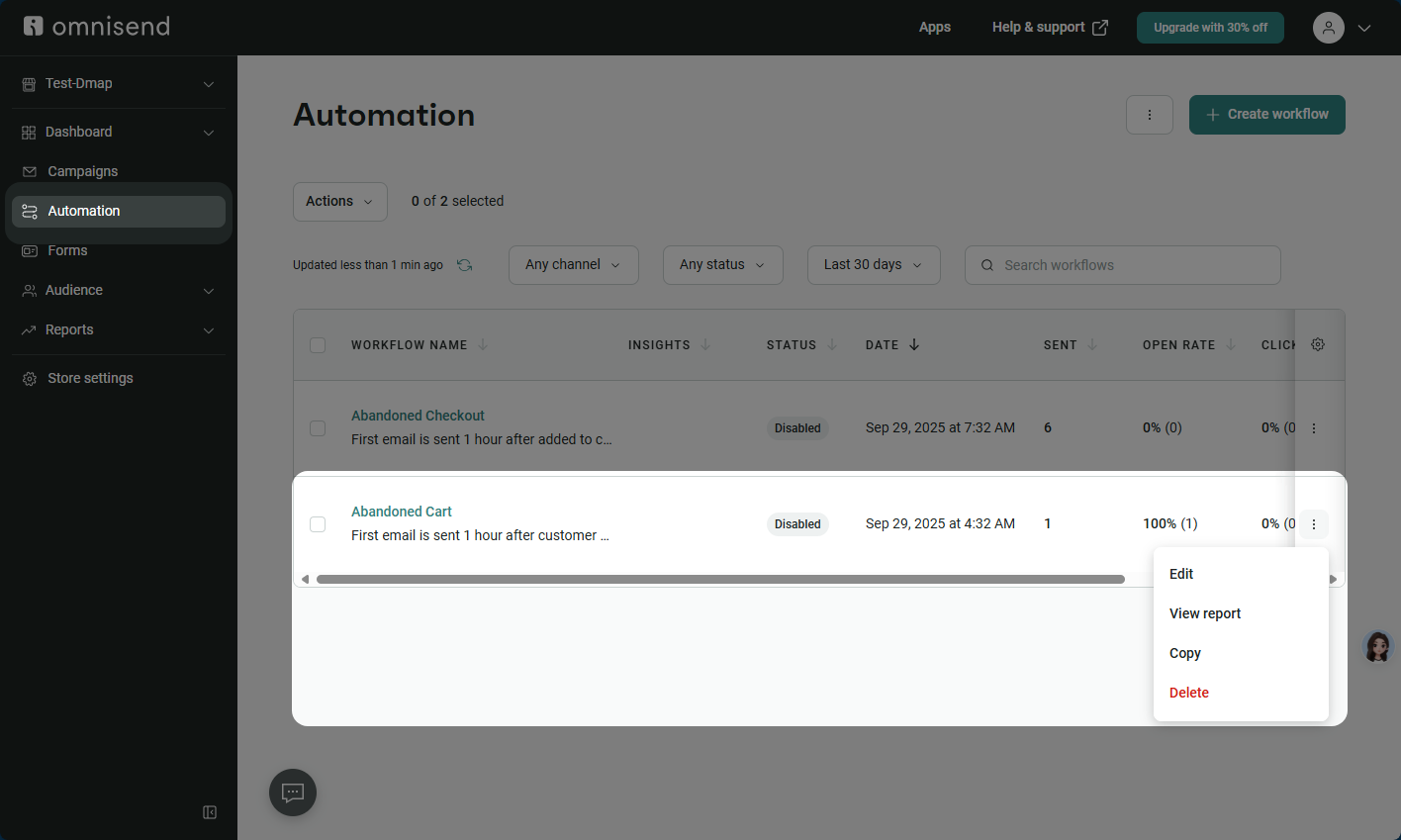
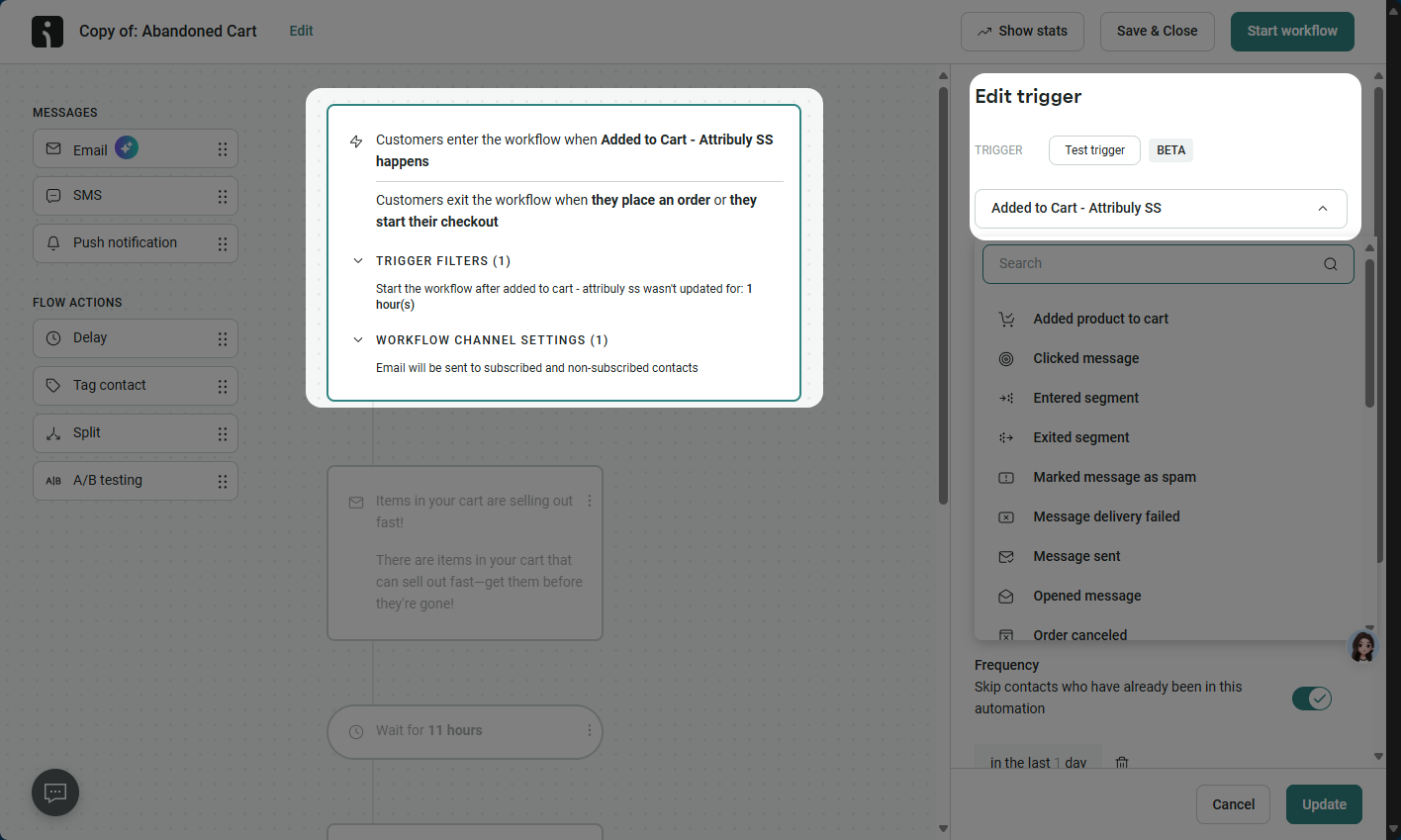
将触发器改为 Added to Cart, Attribuly SS。
在 Skip contacts who are currently in or have recently completed other automations 中设置跳过规则,排除 Omnisend 像素额外收集的购买。
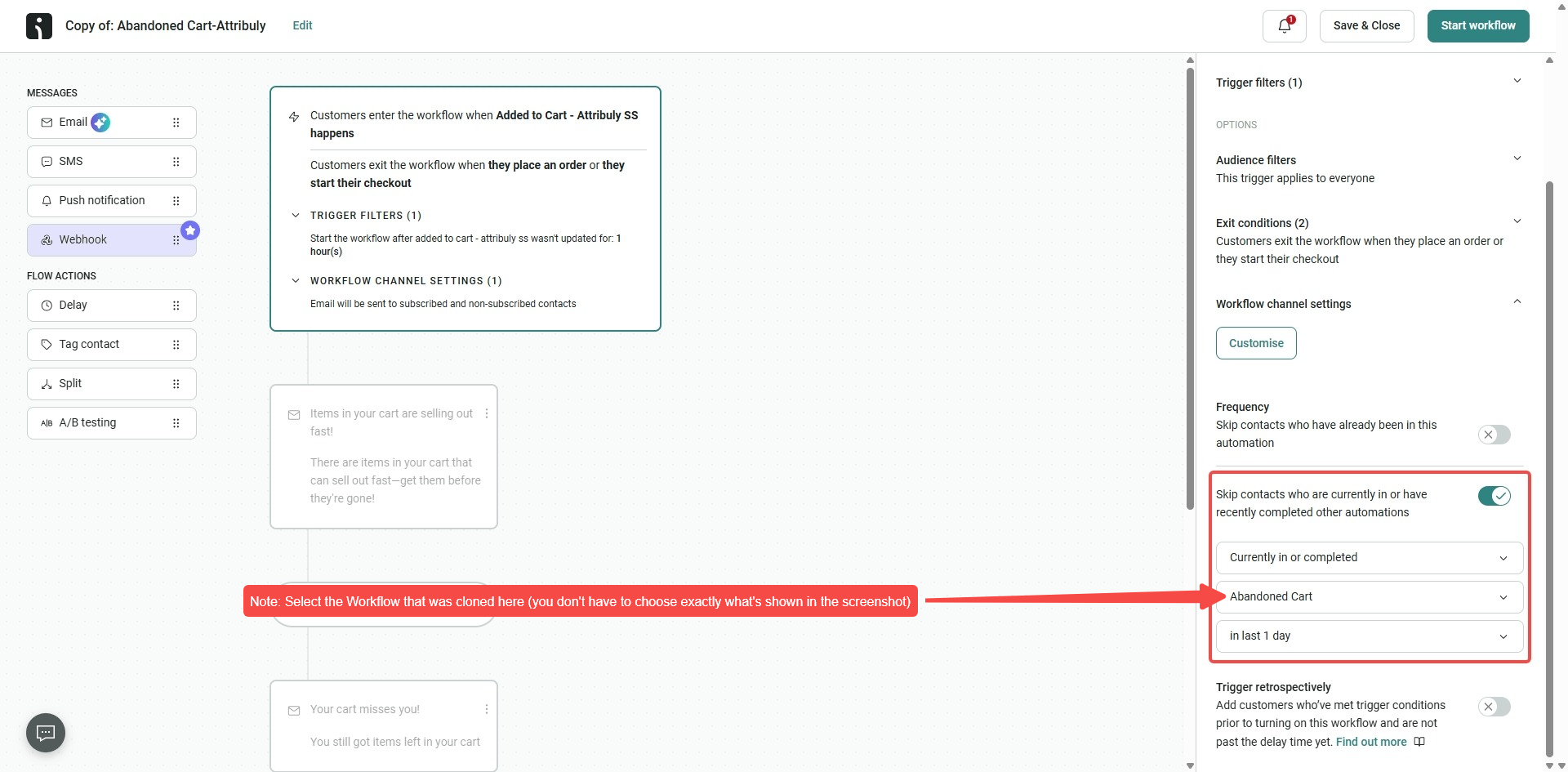
Attribuly SS 与原生事件结构相同,无需修改邮件动态内容。启动流程。
设置 CTA 时,目标 URL 使用:
abandoned_checkout_url : [[event.raw.abandoned_checkout_url]]
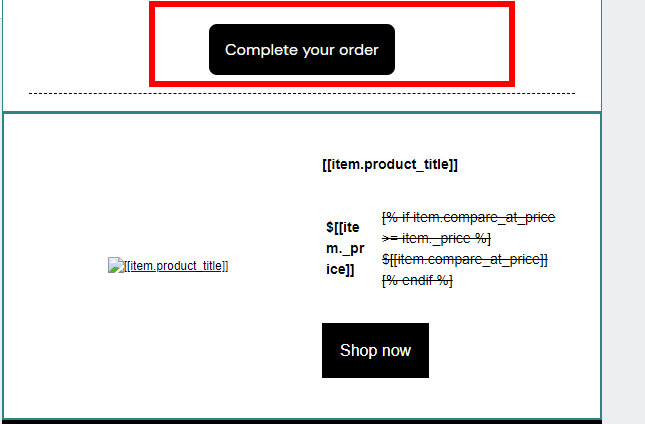
如需在邮件中显示购物车商品,使用 Dynamic Content。
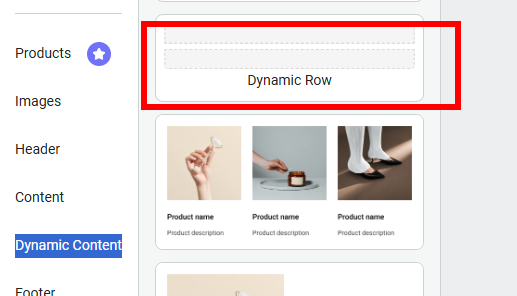
选择 Line items。
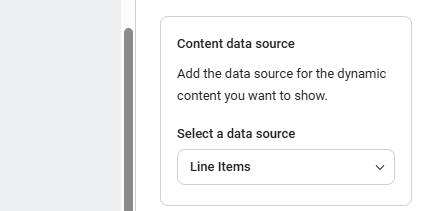
使用以下动态字段:
| 内容 | 字段 |
|---|---|
| 商品名称 | [[item.product_title]] |
| 商品图片 | [[item.image]] |
| 商品价格 | [[item._price]] |
| 商品对比价格 | [[item.compare_at_price]] |
| 商品 URL | [[item.product.product_url]] |
最佳实践:为避免重复发送,添加超过 10 分钟的等待,让 Omnisend 有更多时间计算排除条件。
第 3 步:配置 Capture
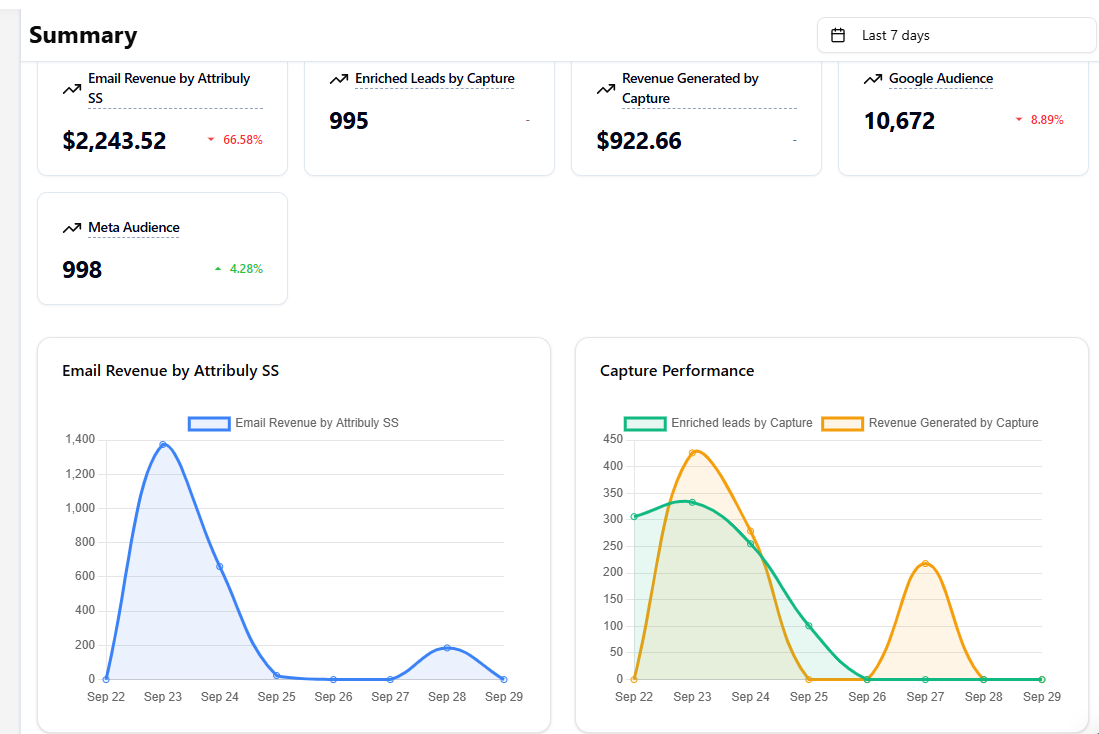
在设置中启用 Capture,即可收集匿名访客邮箱并触发 Omnisend 自动化,再到首页监控结果。