Export Conversion Data to CSV
You can now export the full conversion list from any attribution detail dialog directly to a CSV file — no email required.
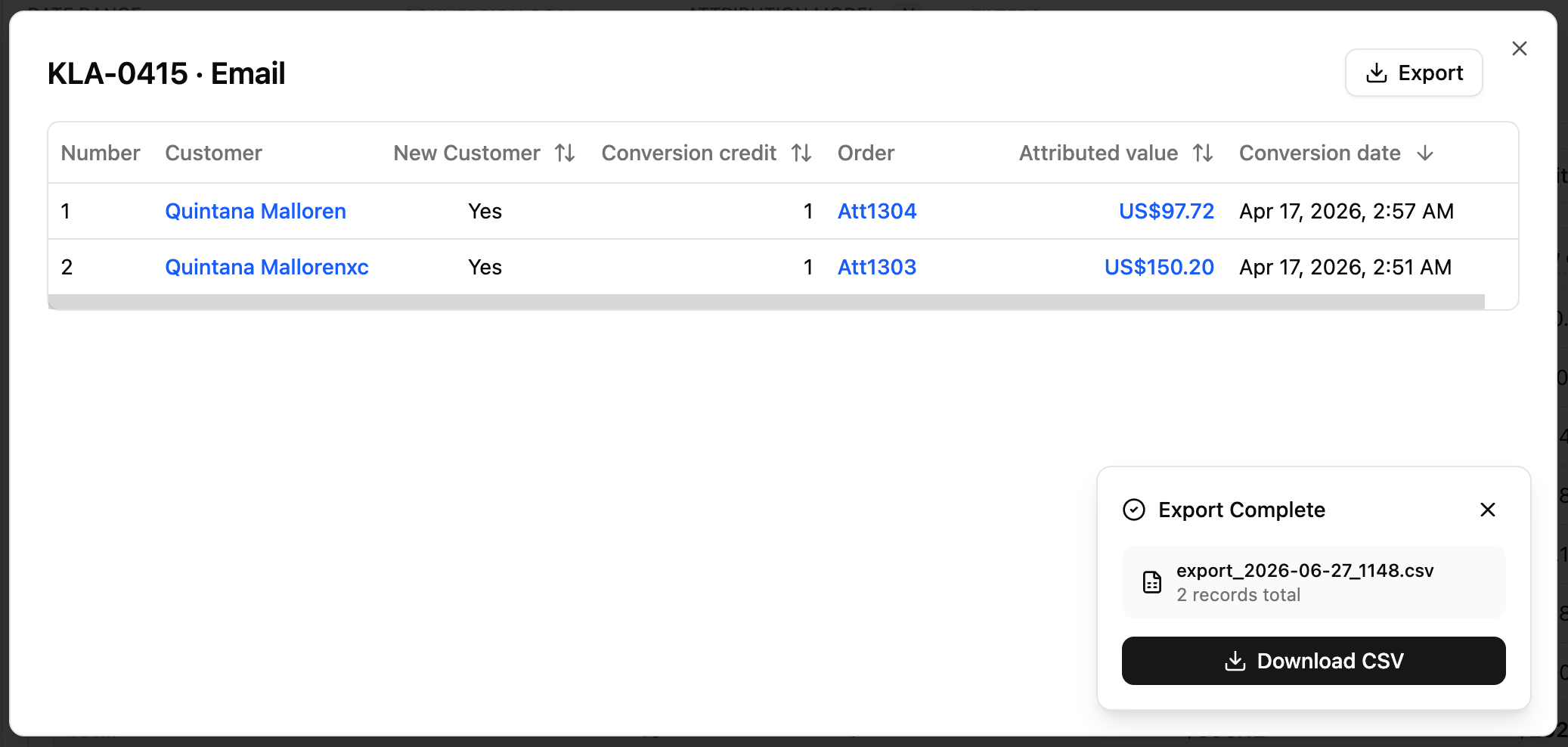
Where to find it
- Open any attribution report → click a conversion count or value cell to open the detail dialog
- Works on both All Channels and Ads attribution detail views
How to use
- Click the Export button in the top-right corner of the detail dialog
- A progress panel appears in the bottom-right — it shows how many records have been fetched so far
- Once all data is ready, the panel shows a Download CSV button along with the filename and total record count
- Click Download CSV to save the file to your device
- To cancel at any time, click Cancel in the progress panel
Notes
- The export fetches all records across all pages, not just what's currently visible
- The CSV file includes all columns shown in the table, with the same column order and display format
- The filename is automatically generated with the current date and time, e.g.
export_2026-06-27_1430.csv