
How to Build a Klaviyo Abandoned Cart Flow That Fires for Anonymous Shoppers
Step-by-step guide to set up Klaviyo abandoned cart flows that enroll shoppers after identity capture—covers klaviyo.js, backfill, Shopify checks, QA, and consent.
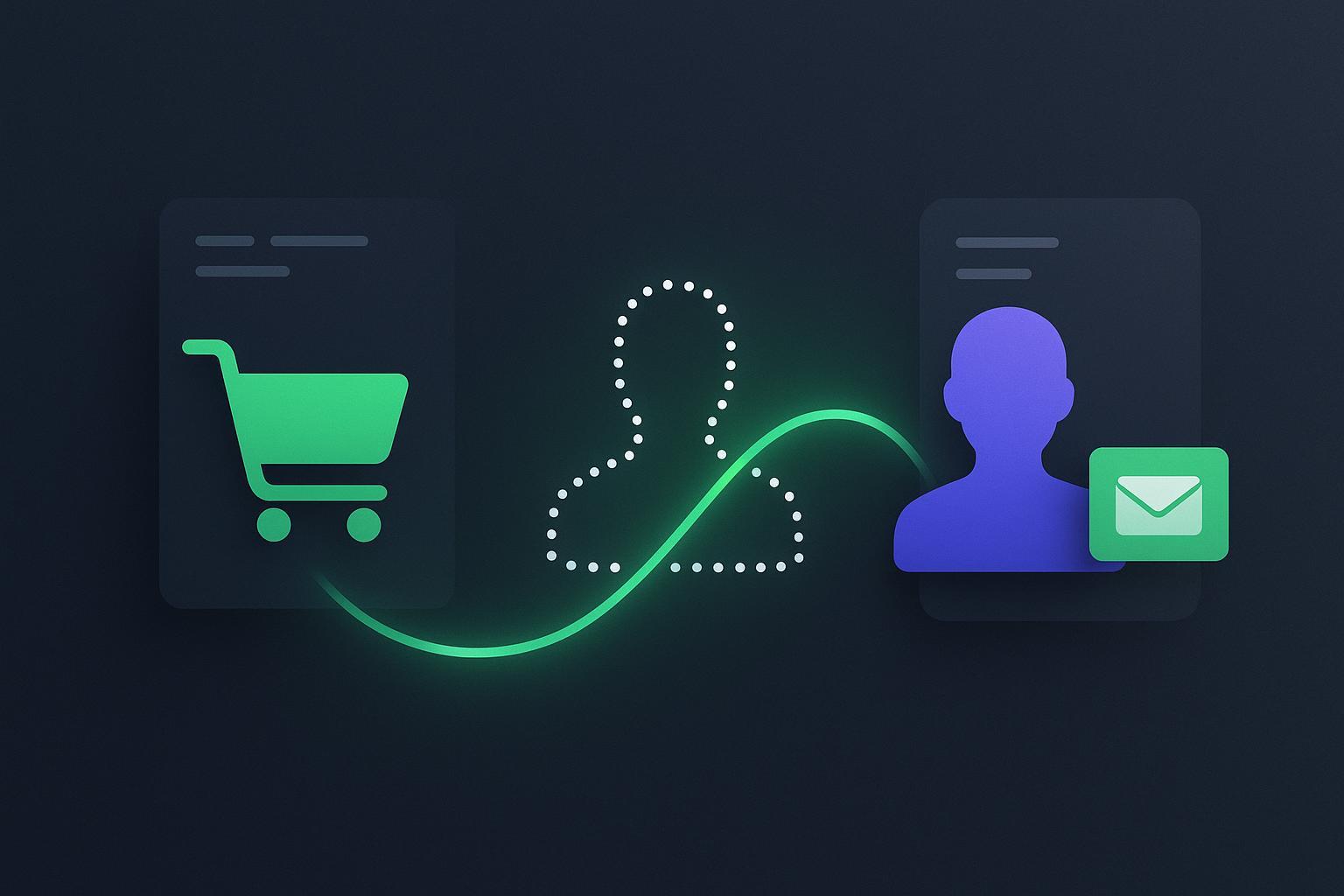
If you’re here for a straight answer, here it is: you can’t email a truly anonymous visitor in Klaviyo. What you can do—what we’ll set up today—is a flow that captures cart intent while the shopper is anonymous and then enrolls them the moment they identify (e.g., they enter an email at checkout). The backbone is Klaviyo’s anonymous visitor activity backfill plus solid flow logic and Shopify-specific identity capture.
We’ll walk through prerequisites, exact flow settings, identity capture tactics that don’t hurt UX, and rigorous verification so you know it’s working—not just “should be.”
Key takeaways
You cannot message unknown users; you can prepare flows that trigger immediately after identification thanks to anonymous visitor activity backfill.
Use Started Checkout as your primary trigger and gate sends on identity/consent; consider a lighter Added to Cart flow for non-checkout abandoners.
Verify klaviyo.js, enable backfill, and QA events in DevTools; confirm backfilled activity on the Klaviyo profile timeline and flow enrollment.
In Shopify, disable native abandoned checkout emails to avoid duplicates, and confirm checkout email entry creates/updates the Klaviyo profile.
Expect lower match rates with ad blockers/ITP and non-consenting traffic; test across browsers and consent states.
Prerequisites (quick checklist)
Klaviyo account connected to Shopify; onsite tracking installed on product pages, cart, and checkout entry pages. See Klaviyo’s guide on getting started with onsite tracking.
Anonymous visitor activity tracking/backfill enabled in Settings → Data. Reference: Klaviyo’s overview of identity resolution and anonymous activity backfill.
Consent setup: clarify when you can store/track and when you can send (email vs. SMS). See Klaviyo’s notes on consent in profiles.
Shopify admin access to turn off Shopify’s native abandoned checkout emails (we’ll cover where in a later step) to prevent duplicates.
What “Klaviyo abandoned cart anonymous shoppers” really means
“Klaviyo abandoned cart anonymous shoppers” describes a flow that leverages anonymous onsite events captured by klaviyo.js (e.g., Added to Cart, Started Checkout). When the same person later provides an identifier—most commonly an email at Shopify checkout—Klaviyo’s backfill attaches the recent anonymous events to the profile. From there, your flow can enroll them and send, assuming consent rules are met. You are not sending to an unknown person; you’re preparing the trigger so it fires right when identity becomes known. Klaviyo documents this behavior in its explanations of anonymous visitor activity backfill.
Step-by-step setup
1) Verify klaviyo.js and key events
Open your site in an incognito window. In DevTools → Network, confirm klaviyo.js loads (200 from static.klaviyo.com). Perform a product view, add to cart, and start checkout; you should see POSTs to a.klaviyo.com/track for Viewed Product, Added to Cart, and Started Checkout. Klaviyo’s setup doc: onsite tracking verification.
Expected result: Those metrics appear in Klaviyo under Analytics → Metrics within a couple of minutes.
2) Enable and validate anonymous backfill
In Klaviyo, go to Settings → Data and ensure anonymous visitor tracking/backfill is enabled. See Klaviyo’s guide to identity resolution and backfill.
Expected result: Anonymous onsite events from a pre-identified session later appear on the resulting profile after you identify (e.g., entering email at checkout).
3) Build the primary flow: Started Checkout
Trigger: Metric = Started Checkout (aka Checkout Started in some UIs). Official how-to: create an abandoned cart flow.
Flow filters (at minimum):
Placed Order equals 0 since starting this flow.
Has not been in this flow in the last X days (e.g., 7–14) to reduce repetition.
Message gating: Add a conditional split or message-level filters so email/SMS only send if the profile has a valid identifier and, for SMS, consent. For email, check that the profile has an email. For SMS, check phone number + SMS consent status per Klaviyo’s SMS consent collection and US cart abandonment guidance.
Dynamic content:
For Started Checkout with multiple items, use a Dynamic Table with Row collection =
event.extra.line_itemsand bind fields like{{ item.product.title }}and image/price. See Klaviyo’s guide on dynamic blocks in flow emails.
Timing: Start with 1st email at ~1–3 hours after Started Checkout. Add a 2nd at 20–24 hours if no purchase. Keep SMS to a single reminder within 48 hours (per US guidance above).
4) Optional secondary flow: Added to Cart
Trigger: Metric = Added to Cart. Official pattern: Added to Cart flow for Shopify.
Filters to avoid overlap: Exclude anyone who Started Checkout or Placed Order since starting this flow. Keep this lighter (fewer messages, more product-focused) and similarly gate sends by identity/consent.
Dynamic content: Single-item variables such as
{{ event.ProductName }},{{ event.Price }},{{ event.URL }}can work for simple carts; preview with a sample event to validate the exact fields.
5) Gate by consent and identity
Email: Send only if the profile contains an email. Abandoned cart emails are marketing in most jurisdictions; follow your lawful basis and opt-in rules. See Klaviyo on transactional vs. marketing messaging.
SMS: Send only if phone + SMS consent exist; follow quiet hours and 1-SMS-within-48h guidance for US audiences.
Shopify specifics (and avoiding duplicates)
Checkout identification: The moment a shopper enters an email at Shopify checkout, Shopify creates/updates the customer record and Klaviyo receives the identity, at which point backfilled events can attach and your flow can enroll. Review Shopify’s overview of abandoned checkouts and recovery timing.
Turn off Shopify’s native recovery emails to prevent double-sends: In Shopify Admin → Settings → Checkout → Customer emails → Abandoned checkouts, uncheck “Send abandoned checkout notifications,” then save. See Shopify’s steps in Recover abandoned checkouts.
Common pitfalls: Conflicting Shopify Email automations, third-party checkout apps that interrupt identification, or custom Plus checkouts missing the Klaviyo script at the first step.
Identity capture tactics that respect UX
Cart/checkout-adjacent form: Keep it low-friction, e.g., “Save your cart and get back to it later.” Sample microcopy for email-only capture:
Save your cart for later Enter your email to get a link back to your items. By submitting, you agree to receive marketing emails. Unsubscribe anytime.
Progressive profiling: Ask for email first; after submit, consider a light prompt for SMS with clear disclosures and a checkbox for consent (separate from email consent). Reference: Klaviyo’s SMS consent collection.
Web push: Optional. If you already have web push subscribers, include a cart reminder in a web push sequence once subscribed; web push still requires prior subscription.
Verification checkpoints (do these before you ship)
DevTools network
In a clean session, view a product, add to cart, start checkout. Confirm POSTs to a.klaviyo.com/track for the three key events. Note the timestamps.
Backfill behavior
Without identifying first, create the events above. Then identify by entering an email at checkout. In Klaviyo, open the resulting profile: you should see the anonymous onsite events attached to the profile’s timeline shortly after identification. Klaviyo documents this in anonymous visitor activity backfill.
Flow enrollment
Open the Started Checkout flow in Klaviyo and use View Activity to see the profile enter the flow. For analytics and logs, see Klaviyo’s docs on flows performance and troubleshooting metric-triggered flows.
Template preview
In your flow email editor, load a sample Started Checkout event. Bind dynamic fields using the previewer. For multi-item carts, iterate
event.extra.line_items; for single-item Added to Cart events, use the simplerevent.*fields. See dynamic blocks.
Troubleshooting (common problems → fixes)
No events visible in Klaviyo: Confirm klaviyo.js loads on PDP, cart, and checkout entry pages; check for ad blockers or consent denials; verify in Analytics → Metrics that Added to Cart and Started Checkout are receiving data.
Backfill didn’t attach: Ensure anonymous tracking is enabled; confirm identification happened (email entered at checkout); inspect Network for identify requests; try again in a fresh incognito session.
Low match rates: Expect gaps with Safari ITP, cross-device behavior, or blockers. Consider testing hybrid/server-side capture; document impact by running tests with and without blockers.
Duplicate messages: Disable Shopify’s recovery emails and add flow filters: Placed Order equals 0 since starting this flow; Has not been in this flow in last X days.
Dynamic content missing: In a Started Checkout email, ensure your Dynamic Table uses
event.extra.line_itemswith a row alias likeitem. For Added to Cart, use single-item variables. Always validate with a live sample payload.
Optional vendor example (identity sync)
An identity-resolution service can provide additional, compliant identifiers to Klaviyo so that more shoppers who began as anonymous can be reached post-identification. For example, Attribuly offers a Klaviyo integration that can sync identified profiles and audiences to Klaviyo for enrollment in your abandonment flows once lawful identity is available. Confirm lawful basis and update your privacy policy before using identity-resolution services. For implementation approaches, see Klaviyo’s identity docs linked above.
Testing recipes and a compact QA matrix
Run these scenarios in incognito unless stated otherwise, and record pass/fail with timestamps and screenshots.
Scenario A: Incognito, no prior ID → view product → add to cart → start checkout → enter email → abandon. Expected: Profile created/updated; backfilled view/add events on timeline; enrolled in Started Checkout flow.
Scenario B: Incognito + consent opt-out (EEA simulation). Expected: No tracking/backfill until consent is granted.
Scenario C: Desktop with ad blocker. Expected: Missing some/all client-side events; note impact.
Scenario D: Mobile-to-desktop cross-device. Expected: Events tie to the device where identification occurs; no pre-identification cross-device backfill.
Scenario E: Variant-heavy cart. Expected: Dynamic table renders correct titles, images, options, and totals.
Scenario F: Post-enrollment purchase. Expected: Flow exits due to “Placed Order = 0 since starting this flow” filter.
Test ID | Setup summary | Expected result | Pass/Fail |
|---|---|---|---|
A | Incognito → view/add/checkout → email | Backfilled events + flow enrollment | |
B | Incognito, opt-out | No tracking until consent | |
C | Ad blocker on | Events partially/fully missing | |
D | Mobile → desktop handoff | Enrollment only after identification | |
E | Multi-item cart | Dynamic table populates correctly | |
F | Purchase after email 1 | Flow exits, no further sends |
Next steps and measurement
Calibrate timing and cadence. For benchmarks and templates, see our notes on abandoned cart timing and templates.
Track performance with Klaviyo’s Flows Performance report and separate browse vs. cart abandonment to avoid double-counting.
If you plan multi-channel retargeting beyond email/SMS, you can evaluate audience syncing options such as Attribuly’s Retargeting to coordinate ads once consent and identity are present.
If you’ve completed the steps and your enrollment triggers line up with profile identification in your tests, you’re set—the flow will “wake up” the moment an anonymous shopper becomes known. Now, let’s keep an eye on the logs and iterate with data.