
Step-by-Step Shopify Server-Side Tracking Without Heavy Dev
Learn server-side tracking on Shopify Plus with Checkout Extensibility and Meta CAPI—code-free, step-by-step setup, improved attribution, and privacy-first QA.
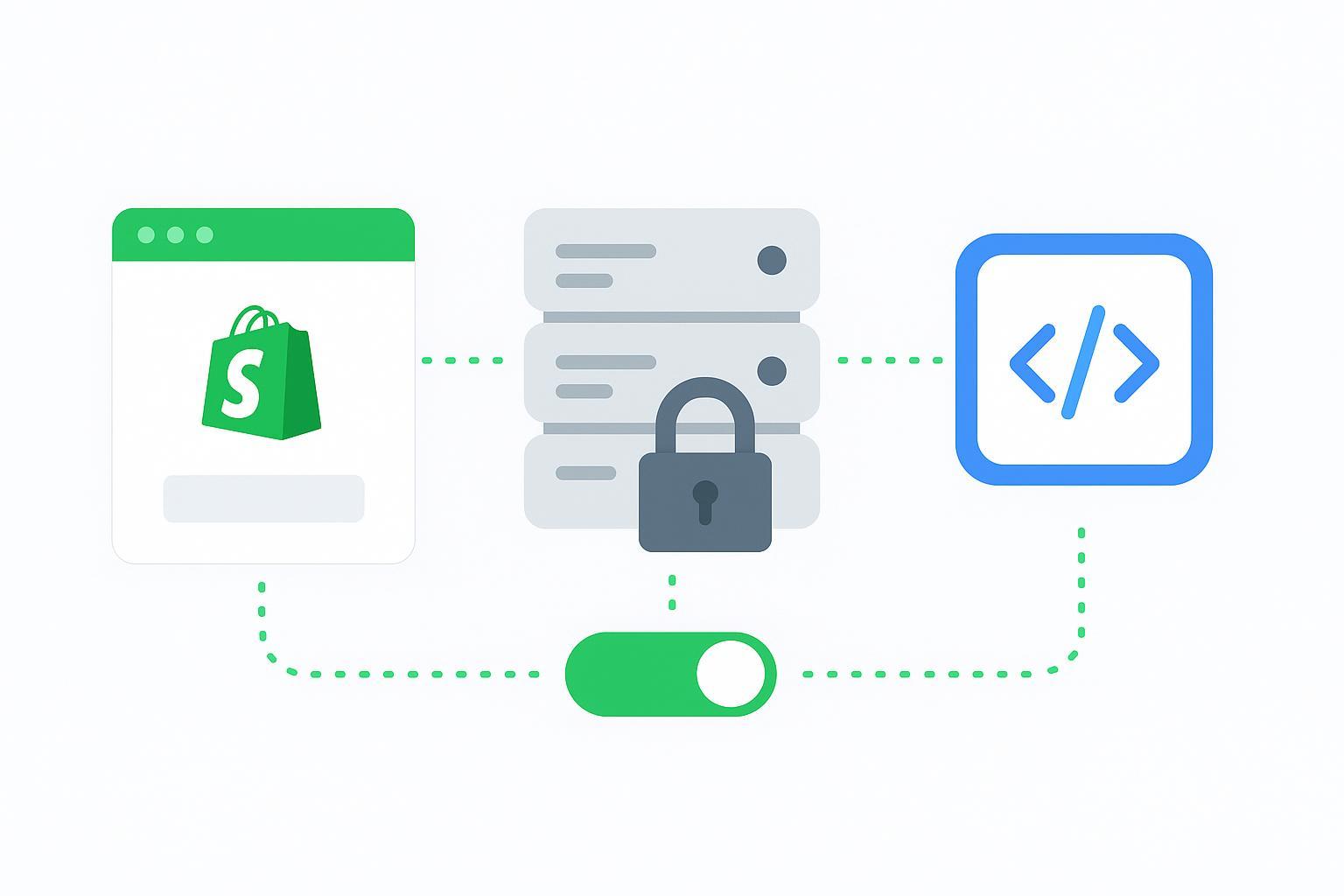
If you run a Shopify Plus store and want reliable attribution without spinning up a custom backend, this walkthrough is for you. We’ll set up a consent-first, code-light hybrid of browser pixel + Meta Conversions API (CAPI) using Checkout Extensibility and Customer Events (Web Pixels). The goal: improve dataset quality, fix undercounted conversions, and ultimately drive a measurable +Y% attributed conversions.
Key takeaways
Baseline: Shopify Plus with Checkout Extensibility. Use Customer Events (Web Pixels) instead of checkout.liquid edits for checkout and purchase tracking.
Consent-first: Gate marketing events using Shopify’s Customer Privacy API so server-side dispatch respects user choices.
Keep hybrid tracking: Run browser pixel and CAPI together with proper deduplication via a shared event_id and correct action_source.
QA in Meta Events Manager: Validate with Test Events, clear Diagnostics warnings, and raise Event Match Quality (EMQ) by sending richer identifiers.
Measure success: Compare pre/post windows (7–14 days) in Events Manager/Ads Manager to quantify +Y% attributed conversions.
Baseline and prerequisites
Shopify Plus with Checkout Extensibility enabled. Shopify’s upgrade-safe approach replaces legacy checkout.liquid with app-based UI Extensions, Functions, and web pixel extensions. See Shopify’s overview of Checkout Extensibility and checkout.
Customer Events (Web Pixels) will subscribe to standard events like checkout_started and checkout_completed. Review Shopify’s Web Pixels Standard API and event references for checkout_started and checkout_completed.
Meta Business Suite access: Verify your domain and confirm the pixel is connected to the right dataset. Meta’s domain verification is summarized here: Buffer’s domain verification guide.
Consent/CMP: Configure Shopify’s Customer Privacy API or a compatible CMP so marketing events only fire when allowed. See Shopify’s customerPrivacy API and Pixel Privacy guide.
Step-by-step setup
1) Verify Checkout Extensibility and enable Customer Events (Web Pixels)
In Shopify Admin, go to Settings > Customer events.
Ensure Checkout Extensibility is enabled for your Plus store and that you can add a Custom Pixel.
Avoid theme-level scripts for checkout or thank-you pages; use Customer Events to subscribe to checkout signals per Shopify’s pixels overview.
Checkpoint: You should see “Customer events” and the ability to add Custom Pixels or app-based pixels. If not, confirm your store is on Plus and that the checkout upgrade is complete.
2) Configure consent with Shopify Customer Privacy API
In your Custom Pixel, read consent status from customerPrivacy to decide whether to fire marketing events or trigger server-side dispatch.
Key flags: marketingAllowed (for ad tracking), analyticsProcessingAllowed (for analytics), saleOfDataAllowed (Do Not Sell/Share contexts).
Implementation approach: Gate your pixel logic so purchase events only proceed when marketingAllowed is true. See Shopify’s customerPrivacy documentation.
Checkpoint: Consent statuses should appear consistently across checkout and thank-you pages. If they don’t, verify CMP integration and Shopify privacy settings.
3) Connect Meta via Shopify Facebook & Instagram channel
Install/confirm the Facebook & Instagram sales channel in Shopify Admin.
In the channel settings, connect your Business Manager and select the correct pixel.
Set Data Sharing to Maximum to enable server-side sending via the partner integration. Shopify’s UI will guide you; context on Facebook selling is available in Shopify’s Facebook shop overview.
Checkpoint: In Meta Events Manager, you should see both Browser and Server events begin to populate for standard actions as traffic flows.
4) Keep hybrid browser + server and implement deduplication
Maintain both browser pixel and CAPI. Meta deduplicates when event_name and event_id match across channels, and when action_source is set correctly.
Use a unique event_id for each Purchase/Checkout event and ensure the same ID is present in both browser and server events. Meta documents “Original Event Data” parameters here: deduplication via original_event parameters.
Include identifiers like _fbp and _fbc, plus hashed email/phone when consent allows, to improve EMQ. See Meta’s fbp/fbc parameter guide.
Checkpoint: In Events Manager > Test Events, confirm that a single Purchase is recorded (not two). Diagnostics should not flag “Duplicate Events” for Purchase.
5) Subscribe to standard events in Customer Events
In Customer Events, subscribe to checkout_started for funnel measurement and checkout_completed for purchases. Shopify’s event references: checkout_started and checkout_completed.
Extract structured data (currency, value, order_id) from event.data in the pixel environment using Shopify’s Standard API: analytics object.
Do not inject manual scripts in Additional scripts or theme files; those paths are deprecated under Checkout Extensibility.
Checkpoint: Purchases appear reliably on the thank-you page, and your pixel fires once per order. If you see duplicates, audit for overlapping app pixels or legacy code.
6) QA in Meta Events Manager: Test Events, Diagnostics, and EMQ
Use Test Events to validate real-time flows for browser and server. Ensure deduplication status shows “deduplicated” for Purchase when both arrive.
In Diagnostics, resolve warnings like missing currency/value, low match quality, or action_source issues. Meta’s dataset quality guidelines are described in the Omni Optimal Setup Guide and the Dataset Quality API.
Raise EMQ by sending richer identifiers (_fbp, _fbc, hashed email/phone when consent permits). See the fbp/fbc parameters.
Checkpoint: Diagnostics is clear of major warnings; EMQ improves versus baseline. You should see a healthy ratio of Server events, with deduplication functioning.
7) Measure +Y% attributed conversions
Define success as +Y% attributed conversions in Meta. Compare a 7–14 day pre-activation window against a 7–14 day post-activation window, keeping targeting and budgets stable where possible.
Validate that Purchase counts and ads-attributed conversions increase due to better signal quality, not double counting. Cross-check deduplication and Diagnostics.
For teams using a centralized attribution tool, align models (e.g., first-click, last-click, linear) to interpret uplift consistently. A primer on model settings is available in Attribuly’s Settings article.
Checkpoint: Document the uplift with screenshots and notes. If uplift is minimal, review EMQ, identifiers, and consent coverage; consider adding more identifiers where compliant.
Migration note for legacy checkout.liquid users
Are you still relying on checkout.liquid or Additional scripts? Shopify’s Checkout Extensibility replaces those customization points for Plus stores. Migrate tracking to Customer Events and app pixels, and replicate any functionality via UI Extensions and Functions. Shopify outlines upgrade-safe customization in Checkout Extensibility guidance and deprecation details in community updates like transitioning thank-you/order status pages.
Troubleshooting: common pitfalls and fixes
Duplicate Purchase events
Symptom: Two Purchases per order in Events Manager.
Fix: Remove overlapping legacy theme scripts; consolidate pixel sources; ensure a shared event_id and correct action_source. See Meta’s deduplication parameters.
No server events despite Maximum Data Sharing
Symptom: Only Browser events appear.
Fix: Reconnect the Facebook & Instagram channel, verify pixel/dataset selection, check domain verification, and address Diagnostics warnings. Community triage examples: Shopify problems enabling CAPI.
Incorrect currency/value or content_ids mismatch
Symptom: Diagnostics flags “Missing or invalid parameters.”
Fix: Confirm payload mapping in both browser and server paths; ensure currency codes and values match product catalog settings.
Consent not propagating
Symptom: Server events fire when marketing consent is off.
Fix: Audit CMP integration and use Shopify’s Customer Privacy API consistently. Reference customerPrivacy.
Pixel mismatch or dataset confusion
Symptom: Events land in the wrong pixel or dataset.
Fix: In Shopify’s channel settings, reselect the correct pixel; in Meta, confirm dataset ownership and domain verification.
Practical example: a low‑dev path using Attribuly
Disclosure: Attribuly is our product.
If you prefer an app-managed server-side path, an attribution and retargeting tool like Attribuly can be used to connect Shopify to Meta CAPI while keeping Customer Events for browser signals. In practice, you would: connect your store, select the Meta dataset, map purchase parameters, and let the app handle access tokens and server dispatch. The advantage is lower setup complexity and unified QA, while you still validate in Meta Events Manager with Test Events and Diagnostics.
Related resources
Shopify’s Web Pixels API: Standard API overview
Meta deduplication and dataset quality: Original Event Data parameters, Omni Optimal Setup Guide
Broader stack alignment: Attribuly Klaviyo integration and Google Ads integration
You’ve now got a consent-first, hybrid browser + server setup that’s upgrade-safe and low on engineering overhead. Next step: run your pre/post measurement and document the +Y% attributed conversions. Then iterate—improve EMQ, streamline Diagnostics, and keep your tracking stack tidy. Ready to put it into practice?