
Meta Conversions API Shopify: Setup Guide & What It Actually Fixes
Step-by-step guide to set up the Meta Conversions API for Shopify, verify deduplication, and improve Event Match Quality (EMQ). Practical checks, payload samples, and troubleshooting.
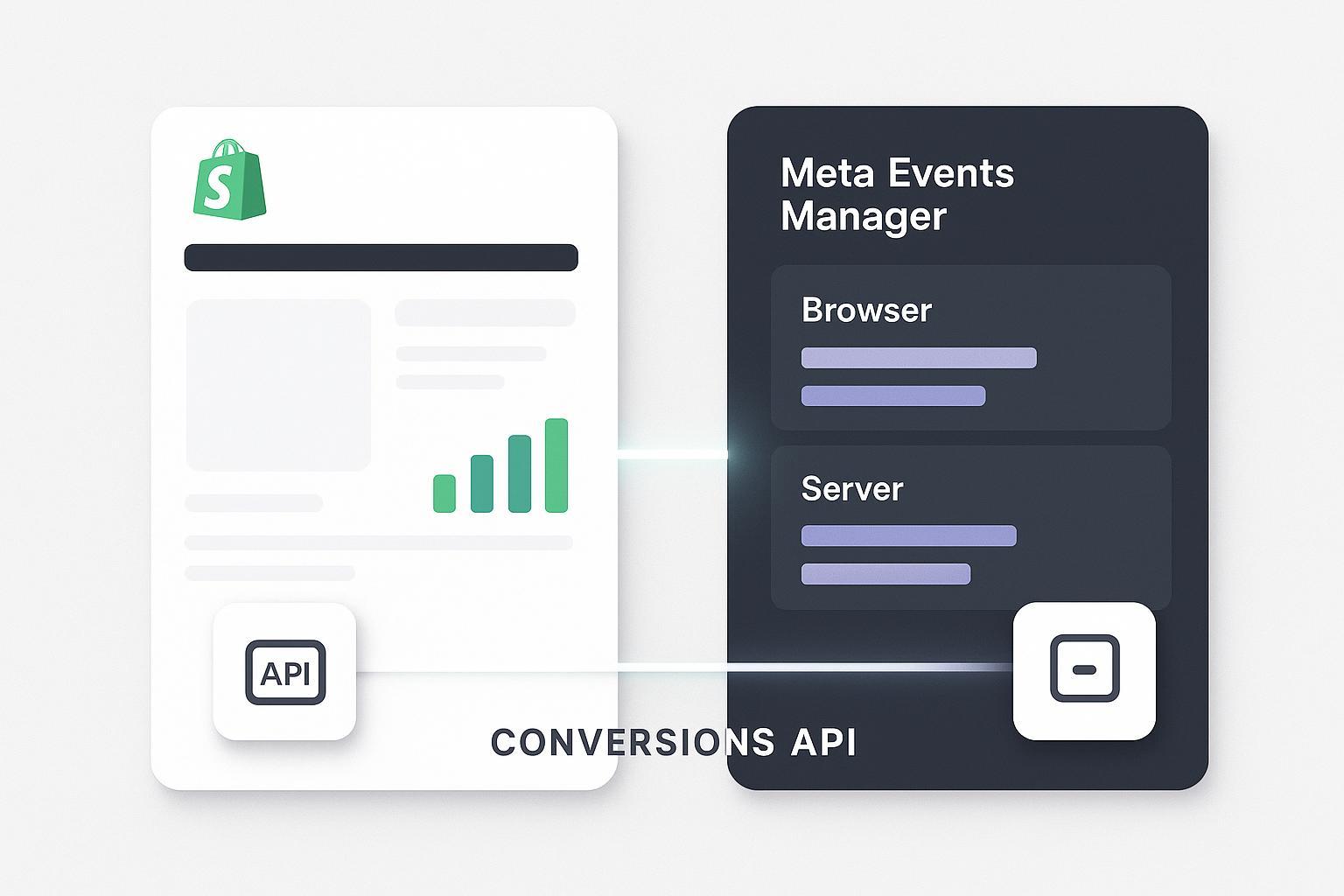
If Meta Ads are a key channel for your store, server-side tracking is no longer optional. This step-by-step guide walks you through how to implement the Meta Conversions API (CAPI) for Shopify, how to verify that browser and server events deduplicate correctly, and what CAPI really fixes—and what it doesn’t.
Key takeaways
CAPI complements, not replaces, your Pixel. The goal is hybrid Browser + Server with correct deduplication.
What CAPI fixes: signal loss from ad blockers, ITP/cookie limits, and parts of iOS14+ tracking gaps—when you can send consented first‑party identifiers.
What CAPI doesn’t fix: user opt-outs (e.g., ATT), missing consent, or misconfigured events. It won’t magically rebuild audiences.
Success checklist: shared event_id across Browser and Server, matching event_name, accurate timestamps, enriched user_data for better Event Match Quality (EMQ).
Start with Shopify’s native app; move to a gateway or server-side GTM only if you need more flexibility.
Which setup should you choose for Meta Conversions API Shopify?
Choose the path that fits your skills, budget, and maintenance appetite:
Shopify native (Facebook & Instagram by Meta): Fastest path, built-in mapping, automatic Pixel connection, and a Conversions API toggle. Best for most teams. See Shopify’s official guide to setting up the Facebook & Instagram by Meta sales channel (Shopify Help Center).
Managed gateway (Meta Conversions API Gateway or similar): Lower maintenance, scalable, still requires correct dedup keys. See Meta’s overview of the Conversions API Gateway (Meta Developers).
Server-side GTM (sGTM): Most flexible for multi-destination routing (Meta, Google, etc.), but needs technical mapping and QA. For technique context, see this independent guide on Facebook Conversions API for Shopify with Google Tag Manager (Analytics Mania).
Direct API: Maximum control; engineering-heavy. Follow Meta’s end-to-end Conversions API implementation guide (Meta Developers).
For foundations on hybrid browser + server models, this primer on server-side tracking for e‑commerce explains the why and how at a high level (Attribuly Blog).
Quick native setup (Shopify Facebook & Instagram by Meta)
Follow these steps for the simplest, reliable hybrid setup. You’ll finalize with Events Manager verification.
Step 1 — Install the sales channel
Shopify admin → Settings → Apps and sales channels → Add apps → Search “Facebook & Instagram by Meta” → Install. Reference: Shopify’s sales channel setup instructions for Facebook & Instagram by Meta.
Step 2 — Connect Meta Business assets
Inside the sales channel, connect:
Your Meta Business Account
Ad account
Pixel (select the correct Pixel ID for this store)
Step 3 — Enable Data Sharing and CAPI
In the Facebook & Instagram by Meta app settings, open Data sharing settings → Turn on Conversions API. Keep your Pixel enabled for Browser events.
Step 4 — Confirm catalog and domain alignment
Ensure the connected catalog and primary domain match your storefront. Domain consistency reduces mismatched event_source_url issues in server hits.
Step 5 — Trigger a test action
Open a private window, add a product to cart, start checkout, and—if feasible—complete a low-value test purchase. Keep Events Manager ready.
Step 6 — Verify in Events Manager: Test Events
Meta Events Manager → select your Pixel/dataset → Test Events.
Perform the same actions again (AddToCart, InitiateCheckout, Purchase).
You should see Browser and Server entries for the same event_name.
Look for a shared event_id; when present, one entry will be deduplicated.
Deduplication mechanics and parameters: see Meta’s guidance on Server Event parameters (event_id, event_name, action_source) and the end-to-end implementation guide (Meta Developers).
Step 7 — Check Event Match Quality (EMQ)
Still in Events Manager, open the Event Quality/EMQ panel for your server events. If EMQ is low, enrich consented user_data (e.g., hashed email/phone) and ensure fbp/fbc are included when available. See Meta’s best practices for Conversions API and the Omni Optimal Technical Setup Guide for EMQ visibility and improvement ideas (Meta Developers).
Step 8 — QA parity and consent
Parity: Compare value, currency, and content_ids between Browser and Server payloads; they should align.
Consent: Only send identifiers when consent is granted in applicable regions. Hash PII (SHA‑256) after normalization per Meta rules. Parameter and hashing details: All Parameters incl. user_data hashing (Meta Developers).
Managed gateway (Meta Conversions API Gateway) — when to use and how to verify
Use a gateway when you want a hosted pipeline with minimal maintenance:
Configure in Meta Events Manager and connect your Pixel/dataset. Overview: Conversions API Gateway (Meta Developers).
Ensure your browser-side implementation provides the event_id to the gateway or that the gateway can echo a consistent ID received from your site.
Verify deduplication in Test Events the same way: matching event_id and event_name across Browser and Server.
For monitoring quality and EMQ, see Gateway monitoring guidance (Meta Developers).
Server-side GTM (advanced) — mapping essentials and sample payloads
If you need multi-destination flexibility, sGTM can route Shopify events to Meta CAPI and others. Essentials:
Capture identifiers client-side
fbp and fbc as raw values (don’t hash)
A stable event_id generated in the browser
Consented user_data (email/phone/name), normalized and SHA‑256 hashed
Forward to your sGTM endpoint
Send event_name, event_time (Unix seconds), event_id, event_source_url, client_user_agent
Include value, currency, and content_ids inside custom_data
Build a Meta CAPI tag in sGTM
Map fields to Meta’s Server Event schema
Set action_source to website
Sample browser payload (conceptual data layer or request body):
{
    "event_name": "Purchase",
    "event_time": 1733702400,
    "event_id": "shopify-ord_1023-1733702400",
    "fbp": "fb.1.1714750000.1234567890",
    "fbc": "fb.1.1714750050.AbCdEfClickId",
    "user_data": {
      "em": "<sha256_lowercase_email>",
      "ph": "<sha256_e164_phone>",
      "client_ip_address": "203.0.113.10",
      "client_user_agent": "Mozilla/5.0 ..."
    },
    "custom_data": {
      "value": 49.99,
      "currency": "USD",
      "content_ids": ["SKU-123"],
      "content_type": "product"
    },
    "event_source_url": "https://www.example.com/checkout/thank_you"
  }
Server event you post to Meta (fields aligned to docs):
{
    "data": [
      {
        "event_name": "Purchase",
        "event_time": 1733702400,
        "event_id": "shopify-ord_1023-1733702400",
        "action_source": "website",
        "event_source_url": "https://www.example.com/checkout/thank_you",
        "user_data": {
          "em": ["<sha256_lowercase_email>"],
          "ph": ["<sha256_e164_phone>"],
          "client_ip_address": "203.0.113.10",
          "client_user_agent": "Mozilla/5.0 ...",
          "fbp": "fb.1.1714750000.1234567890",
          "fbc": "fb.1.1714750050.AbCdEfClickId"
        },
        "custom_data": {
          "value": 49.99,
          "currency": "USD",
          "content_ids": ["SKU-123"],
          "content_type": "product"
        }
      }
    ]
  }
Always validate against Meta’s parameters and hashing rules before going live: All Parameters and hashing rules (Meta Developers).
Deduplication deep-dive — how to get event_id right
Deduplication pairs your Browser Pixel event and Server CAPI event so Meta counts only one conversion.
Generate event_id client-side and reuse it server-side for the same logical event.
Match event_name exactly (Purchase, AddToCart, etc.).
Keep event_time accurate and closely aligned.
Include fbp/fbc when available to improve matching context (not used as dedup keys).
Tiny browser-side generator pattern (illustrative):
// Example: stable ID using order number + timestamp
  function makeEventId(orderNumber, ts) {
    return `shopify-${orderNumber}-${ts}`;
  }
  // Store it and pass to server with the checkout payload
For authoritative guidance, see Meta’s note on deduplicating Pixel and Conversions API events and the Server Event Parameters reference (Meta Developers).
Verification in Events Manager — step-by-step
Use this workflow after any implementation change:
Open Test Events
Events Manager → select your Pixel/dataset → Test Events.
Trigger actions in a new browser session (AddToCart, Purchase).
Confirm dual-source visibility
For each event_name, you should see Browser and Server entries.
Expand rows to compare parameters.
Check deduplication
Verify the same event_id appears on both entries.
When matched, one entry is marked as deduplicated or only one is processed. Meta’s Best Practices and the Omni Optimal Technical Setup Guide describe EMQ visibility and general testing guidance (Meta Developers).
Review Event Match Quality
Open the Event Quality/EMQ panel for server events.
If EMQ is low, enrich user_data (hashed email/phone, IP/UA, fbp/fbc) where consent allows. Programmatic diagnostics: Dataset Quality API (Meta Developers).
Validate payload parity
Confirm value, currency, and content_ids match between Browser and Server.
For a structured parity and attribution validation workflow, see this walkthrough on how to validate multi-touch attribution (Attribuly Blog).
Troubleshooting — quick table
Symptom | Likely cause | Immediate checks | Fix |
|---|---|---|---|
Duplicate conversions | event_id missing/mismatched | Compare event_id in Browser vs Server in Test Events | Generate event_id on web, pass to server; align event_name |
No server events | Invalid token or network block | API responses/logs; no Server rows in Test Events | Rotate access token; ensure outbound HTTPS to Graph API |
Low EMQ | Missing hashed identifiers; no fbp/fbc | Inspect user_data in payload; EMQ hints panel | Add hashed em/ph; include fbp/fbc; ensure IP/UA present |
Revenue mismatch | Parameter parity issues | Compare value/currency/content_ids | Map custom_data consistently; send currency explicitly |
Practical example — a neutral server-side hub pattern
Some teams centralize server-side tracking in a hub that forwards Shopify events to Meta while preserving dedup keys. In such a workflow, the browser Purchase fires with a generated event_id and available fbp/fbc; the hub forwards a Conversions API Purchase with the identical event_id and consented, hashed user_data. In Events Manager, you’ll see the Server entry paired with the Browser entry under the same event_id.
If you use Attribuly for this hub pattern, see the help article on the Meta (Facebook) destination: the server-side tracking and the Connection — Destinations collection for additional context (Attribuly Help Center).
Next steps and resources
Run the verification workflow after each change: Test Events → dedup check → EMQ review → parity check.
If you need a flexible, multi-destination setup, consider sGTM and keep your mapping aligned to Meta’s parameters.
If you centralize tracking with Attribuly, review the Meta Ads Integration overview (Attribuly) and the Destinations collection for implementation specifics (Attribuly Help Center).
Authoritative Meta references:
Respect regional consent requirements. Hash PII with SHA‑256 after normalization. Don’t send unconsented identifiers.