
Why 88% of Klaviyo Abandoned Cart Emails Never Get Sent (And How to Fix It): The Complete Troubleshooting Playbook for “Klaviyo abandoned cart not sending”
Practical playbook for marketers: diagnose why Klaviyo abandoned cart emails don’t send—Shopify/WooCommerce fixes, server-side fallbacks, and deliverability checklist.
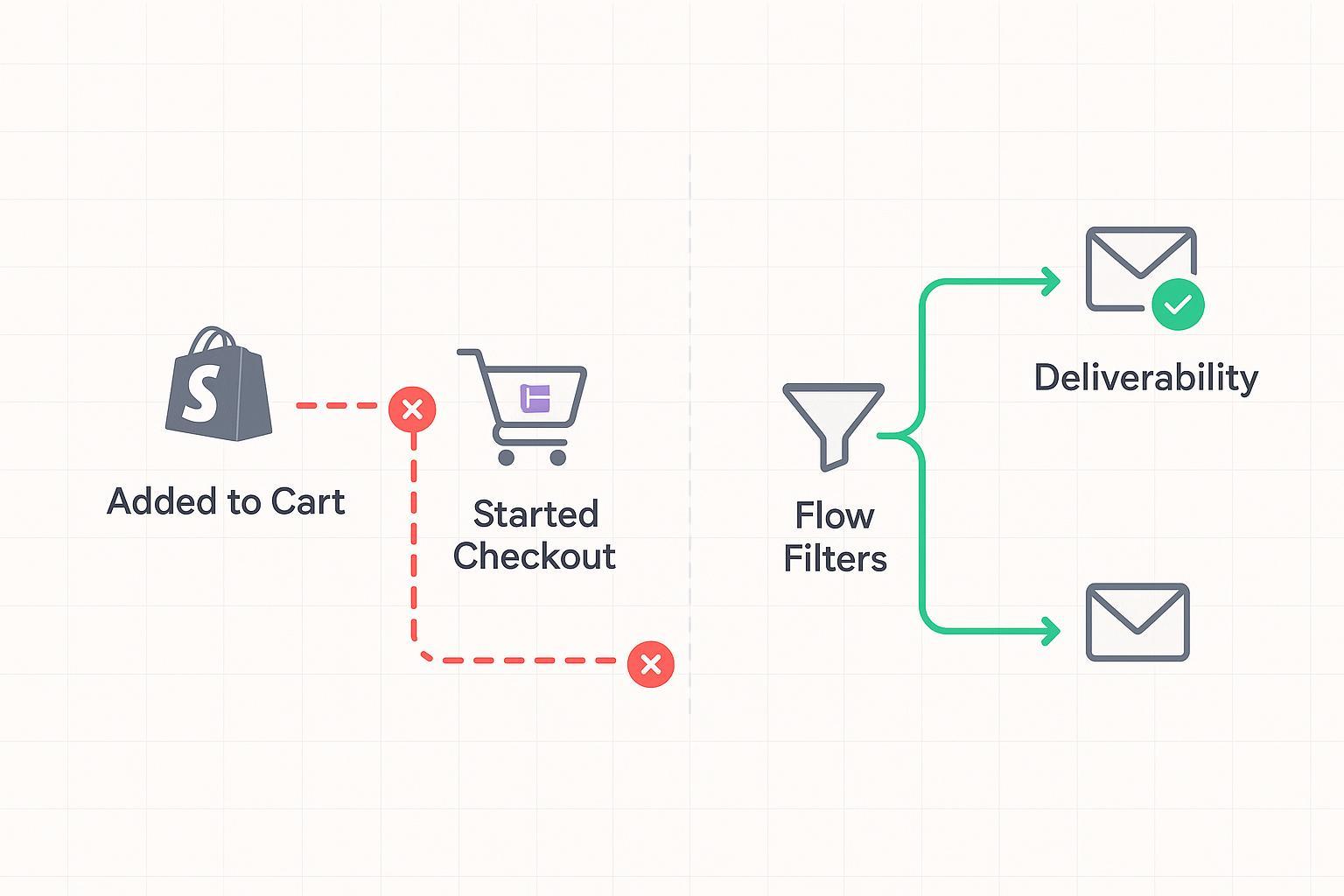
A hard truth: most abandoned‑cart recoveries don’t fail because your copy is weak. They fail because the plumbing is leaking. If “Started Checkout” or “Added to Cart” never arrive, if flow filters quietly skip people, or if your sending domain isn’t authenticated, your emails won’t send—no matter how good the creative is. Here’s the deal: you can fix the majority of these misses in a day with a systematic audit.
Key takeaways
Fix events first. If the trigger metrics aren’t firing, nothing else matters; verify volumes and test an end‑to‑end checkout.
Audit flow filters and skipped reasons. Most non‑sends trace to filters, Smart Sending overlap, or missing email on profile.
Stabilize your integration. On Shopify and WooCommerce, small misconfigurations often block events; re‑auth, update embeds, and test in incognito.
Authenticate and warm your sending domain. Poor deliverability hides “sends” from inboxes and drags down engagement.
When browsers or ad blockers cut off client‑side signals, add a server‑side fallback so Klaviyo still receives “Started Checkout.”
The 10‑minute diagnostic checklist
Open your Abandoned Checkout flow, click the first email, then Performance → View details → Recipient activity → Skipped. Note the top skip reasons (e.g., Fails flow filters, Smart Sending, Suppressed, Email syntax error). See Klaviyo’s guidance in Troubleshooting skipped messages for what each means and how to resolve it (Klaviyo Help, 2024): Troubleshooting skipped profiles in a flow.
In Analytics → Metrics, confirm “Started Checkout” volume over the last 7 days. If it’s near zero despite active traffic, your trigger won’t fire. See Klaviyo’s definition and checks for Started Checkout: Started Checkout tracking and troubleshooting.
Trigger preview: In the flow builder, click the Trigger and use Preview to confirm who qualifies. Does the preview match your expectations? Reference Klaviyo’s overview of troubleshooting for metric-triggered flows: Troubleshooting a metric-triggered flow.
Smart Sending overlap: Open each email, go to Settings, and check whether Smart Sending is enabled. For urgent steps, consider toggling Ignore Smart Sending ON strategically (then monitor engagement). See community-confirmed behavior and controls: Flow emails not sending to everyone (Smart Sending).
Template variables: If you saw “Email syntax error” in step 1, open the template and compare dynamic variables to actual event payload keys (especially checkout_url and line items). Fix mismatches that cause rendering failures. Community threads document the common checkout_url vs extra.checkout_url mismatch: Event extra.checkout_url vs event.url explanation.
Shopify store? Go to Integrations → Shopify in Klaviyo. Confirm the connection is healthy and that Track behavioral events is enabled. If you previously used custom theme snippets for Added to Cart, follow the official migration guide to automatic events: Migrate to automatic Added to Cart for Shopify.
WooCommerce store? Confirm the Klaviyo plugin is connected with REST API keys, klaviyo.js is loading, and no caching/security plugin is blocking requests. Start with the official setup page: Klaviyo for WooCommerce getting started.
Send readiness: Check your Branded Sending Domain and authentication status (SPF, DKIM, DMARC) inside Klaviyo. Missing or invalid records can tank deliverability: Understanding email authentication in Klaviyo.
Consent and list quality: Spot‑check a few profiles that should have entered the flow. Do they have an email, consent, and recent site/session activity? Suppressed or fake addresses will never send. Review general best practices in Klaviyo’s hub: Email marketing best practices.
Sanity test: Use an incognito window, add to cart, start checkout with a test address, and verify the profile shows a Started Checkout event within minutes.
Fix events first to solve “Klaviyo abandoned cart not sending” at the source
If your triggers don’t fire, your flow is a beautiful ghost. Start where the signal begins.
Verify event coverage in Analytics → Metrics. You should see steady deltas for Started Checkout and, optionally, Added to Cart. If volumes are flat but traffic is healthy, suspect blocked JavaScript, consent gating, or outdated theme snippets.
Read the Recipient activity → Skipped breakdown for systemic clues. “Fails flow filters” is common and healthy when buyers complete; “Missing email” or “Email syntax error” are red flags to fix.
Align templates to payloads. Legacy Shopify templates might reference event.extra.checkout_url. If you post server‑side events (more below), mirror these keys so templates render.
Symptom | Where to check | Likely fix |
|---|---|---|
Started Checkout volume near zero | Analytics → Metrics; test your own checkout | Re‑auth integration, fix consent rules, enable automatic behavioral tracking, or add server‑side fallback |
Many “Email syntax error” skips | Flow email → Performance → Skipped; open template | Update dynamic variables to match event properties (e.g., checkout_url, line items) |
Over‑skipping from Smart Sending | Email → Settings | Toggle Ignore Smart Sending for time‑sensitive steps; coordinate with other flows |
Profiles missing email | Profile pages | Ensure email capture before checkout; suppress fake/role addresses to protect deliverability |
Sends but low inbox placement | Account → Settings → Domains; campaign metrics | Authenticate BSD, warm the domain, reduce link spam and heavy images |
Shopify integration fixes that restore abandoned checkout coverage
Shopify can be the easiest place to win back lost triggers—if you confirm a few details.
Disable Shopify’s native abandoned checkout email when your Klaviyo flow is active to avoid clashes. The exact toggle path can vary by Shopify updates, but it lives in Shopify admin → Settings → Checkout → Abandoned checkouts.
In Klaviyo, open Integrations → Shopify and ensure the connection is healthy. Enable Track behavioral events so Shopify’s server pixel emits “Added to Cart” without fragile theme snippets. If you’re migrating from a custom snippet, follow Klaviyo’s official guide: Enable automatic Added to Cart for Shopify.
Confirm the Klaviyo app embed is enabled in your theme customizer. After theme or app permission changes, re‑authorize the integration to refresh scopes.
Run an incognito test: add to cart, start checkout, and verify Started Checkout appears under Analytics → Metrics and on your test profile’s activity feed within minutes.
WooCommerce integration fixes to prevent silent breaks
WooCommerce’s openness is a blessing—and a source of brittle setups if caching and security aren’t tuned.
Install and connect the official Klaviyo for WooCommerce plugin with REST API keys (Read/Write). Verify klaviyo.js loads on product and checkout pages and that test orders populate Analytics and Profiles. Start with Klaviyo’s official guide: Klaviyo for WooCommerce getting started.
Exclude Klaviyo endpoints and scripts from caching/optimization plugins (e.g., WP Rocket, Autoptimize) and from security/CDN rules that rate‑limit bots.
Watch Webhooks and Scheduled Actions in WordPress; backlogs can delay Placed Order and confuse filter logic.
If your checkout is single‑page or custom, client‑side triggers may not fire every time. Consider a server‑side fallback for Started Checkout to keep the flow reliable.
Server‑side fallback with Klaviyo Events API when browsers block signals
When privacy tools, ITP, or custom checkouts block client‑side events, post a Started Checkout from your server. Keep the properties aligned with your templates (especially the checkout URL and line items) so rendering doesn’t break.
Use Klaviyo’s Create Event endpoint with your private API key. Klaviyo’s current API expects JSON:API format with headers for Authorization, Content‑Type, and Revision. See the reference for exact header values and rate limits: Create Event via Klaviyo’s Events API.
Here’s a minimal example you can adapt:
{
    "data": {
      "type": "event",
      "attributes": {
        "metric": { "name": "Started Checkout" },
        "profile": { "email": "jane.doe@example.com" },
        "properties": {
          "checkout_url": "https://yourstore.com/checkouts/c/abc123",
          "items": [
            {"product_id": "SKU-123", "name": "Widget", "price": 49.99, "quantity": 1}
          ],
          "value": 49.99
        },
        "time": "2026-05-03T14:12:00Z"
      }
    }
  }
Implementation tip: if your legacy template uses event.extra.checkout_url, either update the template or include an extra.checkout_url object in your event to match.
Prefer idempotent posting (e.g., include your own event_id) to avoid duplicates if you retry on network errors.
If you’d rather not build this from scratch, a neutral, turnkey server‑side pattern that pushes checkout and add‑to‑cart events into Klaviyo is described here: Attribuly Klaviyo integration.
Deliverability and BSD playbook to make sends land where it counts
Even perfect flows flop if inbox providers don’t trust your domain. Solidify the foundation before scaling volume.
Authenticate and verify your Branded Sending Domain in Klaviyo. Publish SPF and DKIM for your sending subdomain and a DMARC policy aligned to your From address. Klaviyo’s primer explains what’s required and how to validate: Understanding email authentication and branded domains.
Follow 2024 bulk‑sender rules for Gmail and Yahoo: authenticate, keep spam complaints ideally below 0.1%, include one‑click unsubscribe, and use consistent From‑Name. Klaviyo summarizes these changes and ongoing expectations; see: Google and Yahoo sender requirements summary and Yahoo’s own guidance: Yahoo sender best practices.
Warm new subdomains gradually. Start with your most engaged segment and ramp daily while watching delivered rate, spam, and blocks. Reduce links and heavy images for Outlook‑heavy lists; keep templates light while reputation builds.
Maintain list hygiene. Suppress long‑term non‑engagers so your abandoned‑cart sends go to people who interact—this protects future inboxing and improves revenue per send. See Klaviyo’s best‑practice hub for practical hygiene guidance: Email marketing best practices.
Measurement plan and timeline you can execute in four weeks
You’ll move faster if you baseline before fixing. Capture these metrics now and again after each change.
What to baseline this week:
Flow entry rate: Started Checkout count and % of checkouts that enter the flow.
Skipped recipients breakdown by reason on each message.
Sent → Delivered → Bounced for the flow’s first email.
Recovered revenue attributed to the flow over 7–14 days.
Week 1–2 actions:
Complete integration re‑auth and behavioral event setup.
Fix flow filters and Smart Sending overlaps where they block time‑sensitive steps.
Authenticate BSD and begin domain warm‑up if needed.
Deploy the server‑side Started Checkout fallback for edge cases.
Week 3–4 optimization:
Compare flow entry rate and delivered rate to baseline; aim for clear lifts.
A/B test send timing on the first email (e.g., 1 hour vs 4 hours after checkout start) and watch recovered revenue per visitor.
Review skipped reasons again; shrinking “Missing email” and “Syntax error” should correlate with higher sends.
Timing and templates that convert without creating filter conflicts
Cadence suggestions are guidelines, not commandments. Use them to start, then tune to your audience.
Recommended three‑step timing for abandoned checkout: first at 1 hour, second at 24 hours, third at 72 hours. Keep the first message utility‑forward (restore cart link prominent), the second with social proof or FAQs, and the third with a gentle nudge.
Sample subject ideas you can A/B test: “You left something behind,” “Checkout’s still open—want to finish?,” “Still thinking it over? Your cart’s saved.”
Ensure exclusions like “Has Placed Order zero times since starting this flow” and avoid stacking with heavy promotional blasts in the same 16‑hour window.
For more timing context and copy ideas, see this benchmark resource: Abandoned‑cart timing cohorts and templates.
If you need a turnkey server‑side path to backfill Started Checkout and Added to Cart into Klaviyo when browsers block scripts, explore this neutral implementation overview: Attribuly Klaviyo integration. It pairs well with the platform fixes above and keeps your flows firing when client‑side tracking falls short.