
How to Diagnose a Meta Pixel Purchase Undercounting Problem on Shopify
Step-by-step guide to diagnose and fix Meta Pixel purchase undercounting on Shopify—verify Pixel/CAPI, event_id dedup, payload, checkout and consent issues.
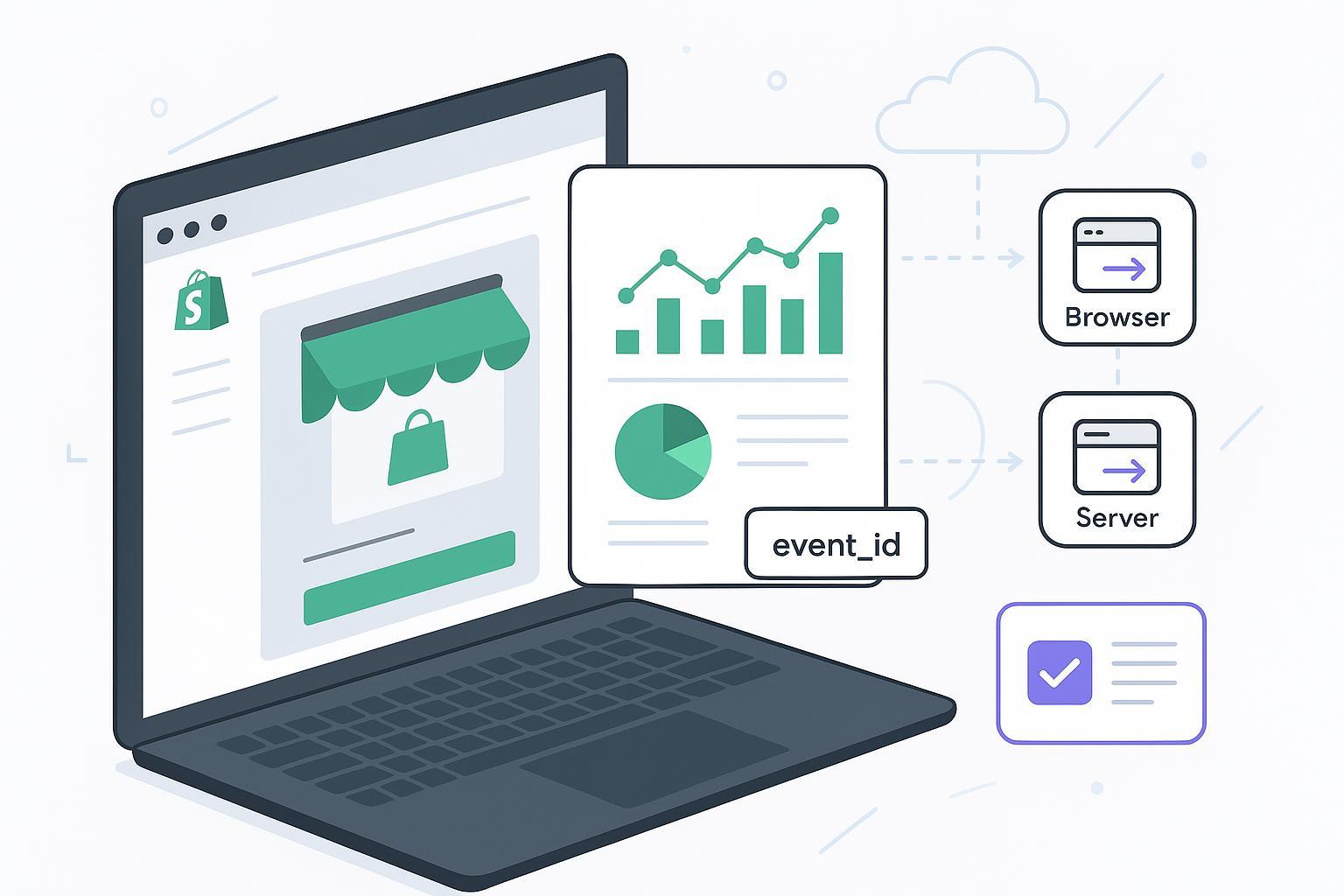
If your Shopify orders look healthy but Meta shows fewer Purchases than expected, you’re likely facing a measurement—not a marketing—problem. This guide walks you through a clear, time‑boxed workflow (about 30–60 minutes) to diagnose Meta Pixel Purchase undercounting on Shopify, covering browser Pixel vs Conversions API (CAPI), event_id deduplication, checkout extensibility changes, payment gateways, and consent settings. The outcome: you’ll know exactly where loss occurs and how to fix it.
Key takeaways
Verify first, then fix: confirm the Pixel fires, validate CAPI connectivity, align dedup with a shared event_id, and ensure Purchase payload integrity (value, currency, content_ids).
Shopify’s Checkout Extensibility and off‑site gateways can break page‑based Purchase events; use Shopify Web Pixels and/or server‑side triggers to maintain coverage.
Undercounts often stem from duplicate implementations (native + theme + GTM) or consent blocking; a single implementation with proper dedup usually restores accuracy.
In Meta’s Events Manager, “good” looks like both Browser and Server Purchases with the same event_id, no active Diagnostics for Purchase, and a reasonable funnel from InitiateCheckout to Purchase.
Quick tools you’ll use
Chrome’s Meta Pixel Helper for instant browser checks, and Meta Events Manager > Test Events for real‑time server/browser validation.
Shopify Admin (Facebook & Instagram channel, Customer events/privacy), plus basic access to server logs or your tracking app’s event inspector.
The 30–60 minute diagnostic flow for Meta Pixel purchase undercounting Shopify
You’ll proceed step‑by‑step, validating each layer before moving on. If you discover the issue early (e.g., Pixel not firing on Thank You), you can skip later steps.
1) Confirm the Pixel fires on storefront, checkout, and thank‑you (5–10 min)
Open your product page and cart in Chrome and check the Meta Pixel Helper for PageView and standard commerce events. During a safe test order, look for Purchase on the order status (thank‑you) page. Meta documents the helper here: see the guidance under the Meta Business Help topic on the Meta Pixel Helper. For expected events/parameters, compare against Meta’s standard events reference in the developer docs.
Evidence and how to check:
Reference: the Meta Business Help article on how to use the Meta Pixel Helper: Meta’s Pixel Helper overview.
Parameters and standard names: the developer documentation for Meta’s standard events reference.
If Purchase doesn’t appear on the thank‑you page, don’t panic. Shopify has deprecated legacy “Additional scripts” and moved to Checkout Extensibility; your older snippets may no longer run. Replace them with Shopify Web Pixels or checkout extensions that fire reliably. Learn how the thank‑you and order status pages work today in Shopify’s developer documentation for Thank you and order status customization and the Help Center’s Additional scripts migration note.
2) Validate Conversions API connectivity and deduplication (10–20 min)
In Meta Events Manager > Test Events, run a test checkout. You should see two Purchases: one tagged as Browser (Pixel) and one as Server (CAPI). Expand both payloads and confirm:
The same event_name (Purchase)
The same event_id for both Browser and Server
Required fields on the server event: event_time, action_source, user_data, and custom_data with value and currency
Meta’s best practices explicitly recommend redundant sends with a shared event_id for deduplication; see their Conversions API best practices. Required server parameters are listed in CAPI server event parameters.
Tip: allow a couple of minutes for server events to appear; browser events are often near‑instant, but webhooks or server queues can add brief delays.
3) Remove duplicate implementations or align dedup (5–15 min)
Undercounting can hide behind over‑engineering. Many stores end up with the native Facebook & Instagram channel, a hard‑coded theme.liquid Pixel, and a GTM container—all sending Purchases, some without a shared event_id. Decide on a single browser source of truth (native channel, Shopify Web Pixels, or GTM). If you must keep redundancy, enforce dedup with one shared event_id across browser and server, as prescribed in Meta’s Conversions API best practices and parameter docs.
Here’s the rule of thumb: same Pixel, same event_name, same event_id across Browser and Server. Anything else risks double counts or dropped events.
4) Inspect the Purchase payload for integrity (10–20 min)
Zero‑value revenue or missing Purchases often traces back to malformed payloads. Confirm that value is numeric and greater than 0, currency is a valid ISO 4217 code, and content_ids/content_name are present where applicable. Compare against the server parameters reference above when in doubt.
Sample CAPI Purchase event (for reference only; adjust fields to your store):
{
    "event_name": "Purchase",
    "event_time": 1715452800,
    "event_id": "order_12345",
    "action_source": "website",
    "event_source_url": "https://yourstore.com/thank_you",
    "user_data": {
      "em": ["hash_of_email"],
      "ph": ["hash_of_phone"],
      "client_ip_address": "203.0.113.10",
      "client_user_agent": "Mozilla/5.0 ...",
      "fbc": "fb.1.1715452800.AbCdEf...",
      "fbp": "fb.1.1715000000.1234567890"
    },
    "custom_data": {
      "currency": "USD",
      "value": 89.99,
      "content_ids": ["SKU-TSHIRT-BLACK-M"],
      "content_type": "product",
      "order_id": "12345"
    }
  }
What are you looking for? A non‑zero value, a valid currency, and identifiers (em/ph plus fbc/fbp when available) that usually lift Event Match Quality over time.
5) Isolate checkout and payment gateway interference (10–20 min)
External payment gateways (e.g., PayPal) sometimes change how or when the thank‑you page renders, which breaks script‑based Purchases. In modern Shopify, you should not rely on legacy page‑load snippets. Use Checkout Extensibility and/or server‑side triggers from order webhooks so Purchases are sent even if the browser environment is constrained. Review Shopify’s developer details for Thank you and order status customization and the Help Center’s guidance on migrating Additional scripts.
6) Evaluate consent and CMP behavior (5–10 min)
If your site requires consent before marketing pixels can run, browser events may be suppressed until acceptance. That’s expected. To avoid undercounting, ensure CAPI remains connected so Purchases still arrive server‑side under compliant conditions. Test both states (accepted vs declined) using Shopify’s tools for managing and testing custom pixels; see Shopify’s Help Center on managing custom pixels and permissions.
7) Review Diagnostics and Event Match Quality (ongoing)
In Events Manager, check Diagnostics for active issues like dedup mismatches or missing parameters. Then look at Event Match Quality (EMQ) for Purchase. While Meta doesn’t publish a formal formula, higher EMQ generally comes from more complete user_data (hashed email/phone) and the presence of fbc/fbp when available. Fix the concrete warnings first; EMQ tends to improve as your identifiers get better.
Sanity metrics and expectations
Think of this as your quick dashboard to confirm the fix “sticks.” You don’t need perfect numbers—just stable, explainable ones.
Latency: Browser events are typically seconds; server events are seconds to a few minutes. Small delays are normal.
Funnel proportions: Use ratios comparatively (before/after). A severe drop from InitiateCheckout to Purchase after a change suggests a checkout or CAPI issue.
Reconciliation: Pull the last 7–30 days and track discrepancy trends rather than day‑to‑day noise.
Two‑column worksheet you can copy to a spreadsheet:
Period | Shopify Orders | Meta Purchases | Discrepancy % |
|---|---|---|---|
Last 7 days | |||
Last 30 days |
Aim for a steady, narrow gap post‑fix. Spikes usually mean a release (theme/app) or settings change—circle back to Steps 1–3.
Practical example: use a server‑side validator to confirm CAPI + dedup
If you maintain a hybrid setup (browser + server), validate the shared event_id and payload health with a neutral server‑side tool. For instance, Attribuly can be used to send server‑side Purchase events to Meta and to check that Browser and Server events share the same event_id for proper deduplication; see the support article on the Meta destination, titled Attribuly — Meta destination server‑side tracking. For broader reconciliation practices across Shopify and your ad platforms, the overview in unifying Shopify attribution with Attribuly offers a process you can adapt. Keep the tone operational: your goal is simply to verify signal health, not to change your attribution model.
Troubleshooting notes and when to escalate
If Test Events shows Browser but not Server: re‑check your Facebook & Instagram channel connection or your server integration credentials. Confirm that the server is returning 200‑class responses and that event_time aligns with the actual purchase time.
If you see overcounts: verify that only one browser implementation fires Purchase and that dedup uses a single event_id per order.
If Purchases arrive with value 0.00: audit the payload mapping for value and currency; compare to the server parameters reference noted earlier.
If the Pixel never appears on checkout/thank‑you: confirm you’ve migrated away from legacy Additional scripts and that you’re using Shopify Web Pixels or checkout extensions that fire reliably.
If consent is required: expect fewer Browser Purchases; rely on CAPI to maintain coverage within your policy.
Next steps and further reading
Run this diagnostic flow after any major theme, app, or checkout change—and once monthly as a QA habit. Want to explore tooling trade‑offs? See a neutral overview in Shopify attribution platforms compared. For underlying event names and parameters, keep Meta’s standard events reference handy as your glossary.
— Written by a marketing ops practitioner who has implemented and debugged hybrid Pixel+CAPI tracking on dozens of Shopify stores.